สร้าง Admin Monitoring Dashboard แบบ Real-time
Branch:
workshop/dev-17-admin-monitoringPhase: Development (17/21) Repo: kangana1024/iot-workshop
สวัสดีน้องๆ ทุกคน! เรากลับมาแล้ว (ง่ะ•̀ω•́)ง
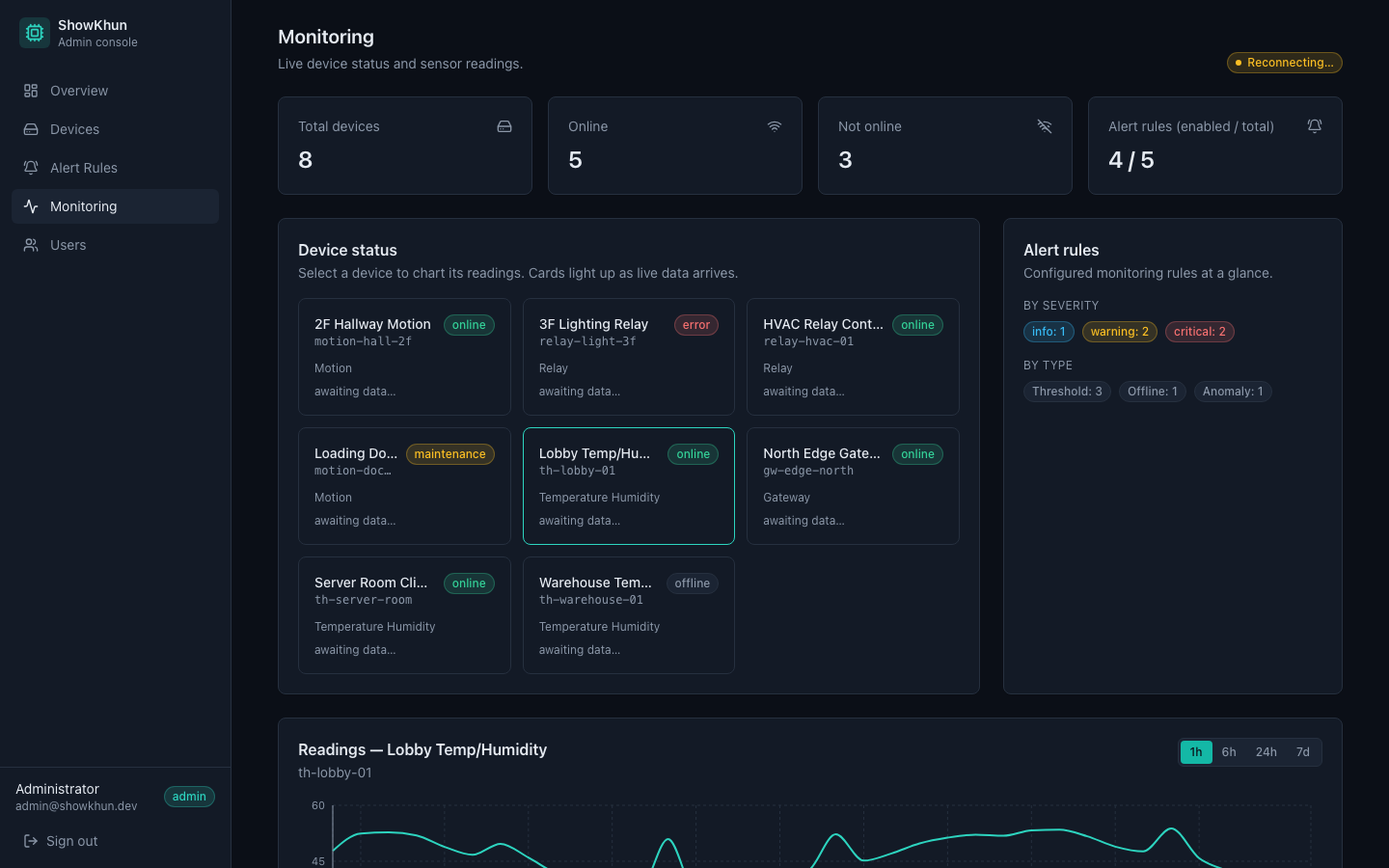
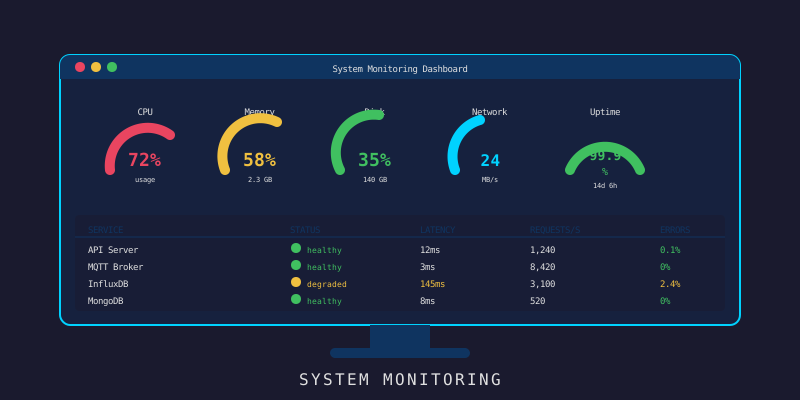
วันนี้เราจะมาทำของที่ “Admin คนเดียวรู้เรื่อง แต่ทุกคนได้ประโยชน์” — นั่นก็คือ Monitoring Dashboard หน้าแรกที่ Admin จะเห็นเวลาเปิด Panel ขึ้นมา
ลองนึกภาพว่าคุณเป็นยามรักษาความปลอดภัยโรงงานขนาดใหญ่ คุณต้องดูกล้องวงจรปิดหลายสิบตัวพร้อมกัน ดูไฟเตือน ดูว่าระบบไหน OK ระบบไหนพัง Dashboard ของเราก็ทำหน้าที่แบบนั้นแหละ แต่สำหรับ IoT devices ทั้งหมดในระบบ
มาลุยกัน!
สิ่งที่น้องๆ จะได้เรียนรู้วันนี้
- ทำไมต้องมี Monitoring Dashboard (WHY ก่อนนะ!)
- สร้าง TypeScript Types สำหรับระบบ Monitoring
- เขียน API Service layer
- สร้าง Component แต่ละชิ้น ได้แก่ Overview Cards, Chronograf Iframe, Device Grid, Alert Management, Service Health, Data Export
- รวมทุกอย่างใน MonitoringPage
ทำไมต้องมี Dashboard? (WHY)
╔══════════════════════════════════╗
║ ถ้าไม่มี Dashboard... ║
║ ║
║ Admin: "device-007 พังเมื่อไหร่?"║
║ Dev: "เดี๋ยวไปดู log..." ║
║ Admin: "alert ไปแล้วหรือยัง?" ║
║ Dev: "เดี๋ยวไปเช็ค DB..." ║
║ Admin: (╯°□°)╯︵ ┻━┻ ║
╚══════════════════════════════════╝
ถ้าเราไม่มีหน้า Monitor รวม ทุกคนต้องวิ่งไปเปิด log, เปิด database, เปิด Chronograf แยกกันทีละหน้าตลอดเวลา นั่นคือ “ข้อมูลมีอยู่ แต่หาไม่เจอ”
Monitoring Dashboard แก้ปัญหานี้ด้วยการรวมทุกอย่างไว้ที่เดียว ทำให้ Admin เห็นภาพรวมระบบทั้งหมดได้ใน 3 วินาทีแรกที่เปิดหน้า
ภาพรวมสถาปัตยกรรม
ก่อนลงมือ มาดู flow ของ Dashboard ทั้งหมดกันก่อน:
เหมือนห้อง Control Room ของโรงไฟฟ้าเลย — จอหนึ่งดู Overview, จอสองดู Graphs, จออื่นดู Alerts แต่เราทำทุกอย่างในหน้าเดียว!
Step 1: TypeScript Types สำหรับ Monitoring
ทำไมต้องเริ่มจาก Types?
เพราะ Types เปรียบเหมือน “สัญญา” ระหว่าง Frontend กับ Backend ถ้ากำหนดไว้ชัดเจนตั้งแต่ต้น ทีม Frontend และ Backend จะทำงานคู่ขนานกันได้เลยโดยไม่ต้องรอกัน
สร้าง src/types/monitoring.types.ts:
export type AlertSeverity = 'critical' | 'warning' | 'info'
export type AlertStatus = 'open' | 'acknowledged' | 'resolved'
export type ServiceHealth = 'healthy' | 'degraded' | 'down'
export interface SystemOverview {
totalDevices: number
onlineDevices: number
offlineDevices: number
errorDevices: number
activeAlerts: number
criticalAlerts: number
dataPointsToday: number
mqttConnections: number
}
export interface DeviceStatusItem {
id: string
deviceId: string
name: string
type: string
status: 'online' | 'offline' | 'maintenance' | 'error'
location: string
lastSeen: string
metrics?: {
temperature?: number
humidity?: number
battery?: number
signal?: number
}
}
export interface Alert {
id: string
deviceId: string
deviceName: string
severity: AlertSeverity
status: AlertStatus
title: string
message: string
metric?: string
value?: number
threshold?: number
acknowledgedBy?: string
acknowledgedAt?: string
resolvedAt?: string
createdAt: string
updatedAt: string
}
export interface ServiceHealthStatus {
name: string
status: ServiceHealth
latency?: number
lastCheck: string
details?: string
}
export interface ExportOptions {
format: 'csv' | 'json'
startDate: string
endDate: string
deviceIds?: string[]
metrics?: string[]
}
Types ทั้งหมดนี้สะท้อนสิ่งที่เราต้องการแสดงบน Dashboard ครบเลย ทั้ง device status, alerts, service health และ export options
Step 2: Monitoring API Service
ทำไมต้อง Service Layer?
เราแยก logic การยิง API ออกมาเป็น service แทนที่จะเขียนตรงใน Component เพราะถ้าวันหนึ่ง Backend เปลี่ยน endpoint เราแก้แค่ที่เดียว ไม่ต้องวิ่งหาแก้ทุก Component เหมือนร้านอาหารที่มีเมนูกลาง แทนที่จะให้พนักงานแต่ละคนจำเมนูเอง
สร้าง src/services/monitoring.service.ts:
import api from './api'
import type { ApiResponse } from '@types/api.types'
import type {
SystemOverview,
DeviceStatusItem,
Alert,
ServiceHealthStatus,
ExportOptions,
} from '@types/monitoring.types'
export const monitoringService = {
// ดึง system overview
async getSystemOverview(): Promise<ApiResponse<SystemOverview>> {
const response = await api.get<ApiResponse<SystemOverview>>('/monitoring/overview')
return response.data
},
// ดึงสถานะ devices ทั้งหมด
async getDeviceStatuses(): Promise<ApiResponse<DeviceStatusItem[]>> {
const response = await api.get<ApiResponse<DeviceStatusItem[]>>('/monitoring/devices')
return response.data
},
// ดึง alerts
async getAlerts(params?: {
status?: string
severity?: string
limit?: number
}): Promise<ApiResponse<Alert[]>> {
const query = new URLSearchParams()
if (params?.status) query.set('status', params.status)
if (params?.severity) query.set('severity', params.severity)
if (params?.limit) query.set('limit', String(params.limit))
const response = await api.get<ApiResponse<Alert[]>>(`/monitoring/alerts?${query}`)
return response.data
},
// Acknowledge alert
async acknowledgeAlert(id: string): Promise<ApiResponse<Alert>> {
const response = await api.patch<ApiResponse<Alert>>(
`/monitoring/alerts/${id}/acknowledge`
)
return response.data
},
// Resolve alert
async resolveAlert(id: string): Promise<ApiResponse<Alert>> {
const response = await api.patch<ApiResponse<Alert>>(
`/monitoring/alerts/${id}/resolve`
)
return response.data
},
// Escalate alert
async escalateAlert(id: string, note: string): Promise<ApiResponse<Alert>> {
const response = await api.patch<ApiResponse<Alert>>(
`/monitoring/alerts/${id}/escalate`,
{ note }
)
return response.data
},
// ดึง service health
async getServiceHealth(): Promise<ApiResponse<ServiceHealthStatus[]>> {
const response = await api.get<ApiResponse<ServiceHealthStatus[]>>(
'/monitoring/health'
)
return response.data
},
// Export data
async exportData(options: ExportOptions): Promise<Blob> {
const response = await api.post('/monitoring/export', options, {
responseType: 'blob',
})
return response.data
},
}
สังเกตว่า escalateAlert รับ note ด้วย เผื่อวันหนึ่งอยากบอกว่า escalate เพราะอะไร ออกแบบ extensible ไว้ก่อนเลย
Step 3: System Overview Cards Component
ทำไมต้องมี Overview Cards?
มันเหมือนหน้าปัดรถยนต์ — ขณะขับรถ คุณต้องการรู้แค่ความเร็ว, น้ำมัน, และอุณหภูมิเครื่องยนต์ ไม่ใช่ spec sheet ทั้งหมด Overview Cards ทำหน้าที่เดียวกัน ให้ข้อมูลสำคัญที่สุดในทันที
สร้าง src/components/monitoring/OverviewCards.tsx:
import { Cpu, Wifi, WifiOff, AlertTriangle, Activity, Database, Signal } from 'lucide-react'
import { clsx } from 'clsx'
import type { SystemOverview } from '@types/monitoring.types'
interface StatCardProps {
title: string
value: number | string
icon: React.ElementType
iconColor: string
iconBg: string
trend?: {
value: number
label: string
positive?: boolean
}
subtitle?: string
}
function StatCard({ title, value, icon: Icon, iconColor, iconBg, trend, subtitle }: StatCardProps) {
return (
<div className="card">
<div className="flex items-start justify-between">
<div className="flex-1 min-w-0">
<p className="text-sm text-gray-500">{title}</p>
<p className="mt-1 text-2xl font-bold text-gray-900">
{typeof value === 'number' ? value.toLocaleString() : value}
</p>
{subtitle && <p className="mt-0.5 text-xs text-gray-400">{subtitle}</p>}
{trend && (
<p
className={clsx(
'mt-1 text-xs font-medium',
trend.positive ? 'text-green-600' : 'text-red-600'
)}
>
{trend.positive ? '▲' : '▼'} {trend.value}% {trend.label}
</p>
)}
</div>
<div className={clsx('p-3 rounded-xl flex-shrink-0', iconBg)}>
<Icon className={clsx('w-6 h-6', iconColor)} />
</div>
</div>
</div>
)
}
interface OverviewCardsProps {
data: SystemOverview
}
export function OverviewCards({ data }: OverviewCardsProps) {
const onlinePercent =
data.totalDevices > 0
? Math.round((data.onlineDevices / data.totalDevices) * 100)
: 0
return (
<div className="grid grid-cols-2 lg:grid-cols-4 gap-4">
<StatCard
title="อุปกรณ์ทั้งหมด"
value={data.totalDevices}
icon={Cpu}
iconColor="text-blue-600"
iconBg="bg-blue-50"
subtitle={`ออนไลน์ ${onlinePercent}%`}
/>
<StatCard
title="ออนไลน์"
value={data.onlineDevices}
icon={Wifi}
iconColor="text-green-600"
iconBg="bg-green-50"
trend={{ value: onlinePercent, label: 'ของทั้งหมด', positive: onlinePercent >= 80 }}
/>
<StatCard
title="ออฟไลน์ / ผิดพลาด"
value={data.offlineDevices + data.errorDevices}
icon={WifiOff}
iconColor="text-red-600"
iconBg="bg-red-50"
subtitle={`ผิดพลาด ${data.errorDevices} เครื่อง`}
/>
<StatCard
title="Alerts ที่ยังเปิดอยู่"
value={data.activeAlerts}
icon={AlertTriangle}
iconColor="text-yellow-600"
iconBg="bg-yellow-50"
subtitle={`วิกฤต ${data.criticalAlerts} รายการ`}
/>
<StatCard
title="Data Points วันนี้"
value={data.dataPointsToday}
icon={Database}
iconColor="text-purple-600"
iconBg="bg-purple-50"
/>
<StatCard
title="MQTT Connections"
value={data.mqttConnections}
icon={Signal}
iconColor="text-indigo-600"
iconBg="bg-indigo-50"
subtitle="Active connections"
/>
<div className="card col-span-2 flex items-center justify-center">
<div className="text-center">
<div
className={clsx(
'w-16 h-16 rounded-full flex items-center justify-center mx-auto mb-2',
onlinePercent >= 90
? 'bg-green-100'
: onlinePercent >= 70
? 'bg-yellow-100'
: 'bg-red-100'
)}
>
<Activity
className={clsx(
'w-8 h-8',
onlinePercent >= 90
? 'text-green-600'
: onlinePercent >= 70
? 'text-yellow-600'
: 'text-red-600'
)}
/>
</div>
<p className="font-semibold text-gray-900">
System Status:{' '}
{onlinePercent >= 90
? 'ปกติ'
: onlinePercent >= 70
? 'ลดประสิทธิภาพ'
: 'มีปัญหา'}
</p>
<p className="text-sm text-gray-500">
อุปกรณ์ออนไลน์ {onlinePercent}% ({data.onlineDevices}/{data.totalDevices})
</p>
</div>
</div>
</div>
)
}
Card ตัวสุดท้ายที่ col-span-2 นั้นทำหน้าที่เป็น “สรุปสุขภาพระบบ” เหมือน Traffic Light — เขียว/เหลือง/แดง บอกได้ทันทีว่าระบบโอเคไหม
Step 4: Chronograf Iframe Component
ทำไมต้อง Embed Chronograf แทนทำ Chart เอง?
Chronograf เป็นเครื่องมือ visualize InfluxDB ที่ทรงพลังมาก การสร้าง Chart ใหม่เองนั้นสิ้นเปลืองเวลาโดยไม่จำเป็น ลองนึกภาพว่าคุณมีจอ 4K อยู่แล้วในห้อง แต่จะไปซื้อจอใหม่เพิ่มอีกอันเพราะอยากให้มันอยู่ในกรอบสวยงาม ไม่ต้องถึงขนาดนั้น — embed มันเข้ามาพอ!
สร้าง src/components/monitoring/ChronografEmbed.tsx:
import { useState, useRef } from 'react'
import { ExternalLink, RefreshCw, Maximize2, Minimize2 } from 'lucide-react'
import { clsx } from 'clsx'
interface ChronografDashboard {
id: string
name: string
url: string
}
const CHRONOGRAF_DASHBOARDS: ChronografDashboard[] = [
{
id: 'overview',
name: 'System Overview',
url: `${import.meta.env.VITE_CHRONOGRAF_URL || 'http://localhost:8888'}/sources/1/dashboards/1`,
},
{
id: 'devices',
name: 'Device Metrics',
url: `${import.meta.env.VITE_CHRONOGRAF_URL || 'http://localhost:8888'}/sources/1/dashboards/2`,
},
{
id: 'alerts',
name: 'Alert History',
url: `${import.meta.env.VITE_CHRONOGRAF_URL || 'http://localhost:8888'}/sources/1/dashboards/3`,
},
]
interface ChronografEmbedProps {
height?: number
}
export function ChronografEmbed({ height = 600 }: ChronografEmbedProps) {
const [activeDashboard, setActiveDashboard] = useState(CHRONOGRAF_DASHBOARDS[0])
const [isFullscreen, setIsFullscreen] = useState(false)
const [refreshKey, setRefreshKey] = useState(0)
const [isLoading, setIsLoading] = useState(true)
const iframeRef = useRef<HTMLIFrameElement>(null)
const handleRefresh = () => {
setIsLoading(true)
setRefreshKey((k) => k + 1)
}
return (
<div
className={clsx(
'card p-0 overflow-hidden',
isFullscreen && 'fixed inset-4 z-50 shadow-2xl'
)}
>
{/* Header */}
<div className="flex items-center justify-between px-4 py-3 border-b border-gray-200 bg-gray-50">
<div className="flex items-center gap-1">
{CHRONOGRAF_DASHBOARDS.map((dashboard) => (
<button
key={dashboard.id}
onClick={() => {
setActiveDashboard(dashboard)
setIsLoading(true)
}}
className={clsx(
'px-3 py-1.5 rounded-lg text-sm font-medium transition-colors',
activeDashboard.id === dashboard.id
? 'bg-primary-600 text-white'
: 'text-gray-600 hover:bg-gray-200'
)}
>
{dashboard.name}
</button>
))}
</div>
<div className="flex items-center gap-2">
<button
onClick={handleRefresh}
className="p-1.5 rounded-lg hover:bg-gray-200 text-gray-500 transition-colors"
title="รีเฟรช"
>
<RefreshCw className={clsx('w-4 h-4', isLoading && 'animate-spin')} />
</button>
<a
href={activeDashboard.url}
target="_blank"
rel="noopener noreferrer"
className="p-1.5 rounded-lg hover:bg-gray-200 text-gray-500 transition-colors"
title="เปิดใน Chronograf"
>
<ExternalLink className="w-4 h-4" />
</a>
<button
onClick={() => setIsFullscreen((f) => !f)}
className="p-1.5 rounded-lg hover:bg-gray-200 text-gray-500 transition-colors"
title={isFullscreen ? 'ย่อ' : 'ขยาย'}
>
{isFullscreen ? (
<Minimize2 className="w-4 h-4" />
) : (
<Maximize2 className="w-4 h-4" />
)}
</button>
</div>
</div>
{/* Iframe */}
<div className="relative" style={{ height: isFullscreen ? 'calc(100% - 49px)' : height }}>
{isLoading && (
<div className="absolute inset-0 flex items-center justify-center bg-gray-50 z-10">
<div className="text-center">
<div className="w-10 h-10 border-4 border-primary-600 border-t-transparent rounded-full animate-spin mx-auto mb-3" />
<p className="text-sm text-gray-500">กำลังโหลด Chronograf...</p>
</div>
</div>
)}
<iframe
key={refreshKey}
ref={iframeRef}
src={activeDashboard.url}
className="w-full h-full border-0"
title={`Chronograf: ${activeDashboard.name}`}
onLoad={() => setIsLoading(false)}
sandbox="allow-scripts allow-same-origin allow-forms allow-popups"
/>
</div>
</div>
)
}
หมายเหตุสำคัญ! Chronograf ต้องตั้งค่า CORS และ
X-Frame-Optionsให้อนุญาต domain ของ Admin Panel ด้วย ไม่งั้น iframe จะโหลดไม่ขึ้นเลย — มันเหมือนเปิดประตูรั้วบ้านให้แขกเข้ามาได้ ถ้าลืมเปิดล็อคก็เข้าไม่ได้อยู่ดี
Step 5: Real-time Device Status Grid
ทำไมต้อง refresh ทุก 30 วินาที?
เพราะ IoT devices อาจ offline หรือ error ได้ตลอดเวลา ถ้าแสดงข้อมูลเก่าอยู่ Admin จะเข้าใจผิดว่าทุกอย่าง OK ทั้งที่จริงๆ อาจมีปัญหาอยู่แล้ว เปรียบเหมือนนาฬิกาที่หยุดเดิน — ถูกสองครั้งต่อวัน แต่ไม่มีประโยชน์อะไรเลย
เราใช้ refetchInterval ของ TanStack Query แทน WebSocket เพราะข้อมูลสถานะนี้ไม่ต้องการ latency ต่ำมาก 30 วินาทีเพียงพอแล้ว และง่ายกว่ามาก
สร้าง src/components/monitoring/DeviceStatusGrid.tsx:
import { useEffect } from 'react'
import { useQuery, useQueryClient } from '@tanstack/react-query'
import { Wifi, WifiOff, AlertTriangle, Wrench, Thermometer, Droplets, Battery, Signal } from 'lucide-react'
import { clsx } from 'clsx'
import { monitoringService } from '@services/monitoring.service'
import type { DeviceStatusItem } from '@types/monitoring.types'
const STATUS_CONFIG = {
online: {
icon: Wifi,
label: 'ออนไลน์',
iconColor: 'text-green-500',
bgColor: 'bg-green-50',
borderColor: 'border-green-200',
dotColor: 'bg-green-500',
},
offline: {
icon: WifiOff,
label: 'ออฟไลน์',
iconColor: 'text-gray-400',
bgColor: 'bg-gray-50',
borderColor: 'border-gray-200',
dotColor: 'bg-gray-400',
},
error: {
icon: AlertTriangle,
label: 'ผิดพลาด',
iconColor: 'text-red-500',
bgColor: 'bg-red-50',
borderColor: 'border-red-200',
dotColor: 'bg-red-500',
},
maintenance: {
icon: Wrench,
label: 'บำรุงรักษา',
iconColor: 'text-yellow-500',
bgColor: 'bg-yellow-50',
borderColor: 'border-yellow-200',
dotColor: 'bg-yellow-500',
},
}
function DeviceCard({ device }: { device: DeviceStatusItem }) {
const config = STATUS_CONFIG[device.status]
const StatusIcon = config.icon
const timeSince = (date: string) => {
const seconds = Math.floor((Date.now() - new Date(date).getTime()) / 1000)
if (seconds < 60) return `${seconds} วิ`
const minutes = Math.floor(seconds / 60)
if (minutes < 60) return `${minutes} นาที`
const hours = Math.floor(minutes / 60)
if (hours < 24) return `${hours} ชม.`
return `${Math.floor(hours / 24)} วัน`
}
return (
<div
className={clsx(
'rounded-xl border p-4 transition-all hover:shadow-md',
config.bgColor,
config.borderColor
)}
>
{/* Header */}
<div className="flex items-start justify-between mb-3">
<div className="flex items-center gap-2 min-w-0">
<div className="relative flex-shrink-0">
<StatusIcon className={clsx('w-5 h-5', config.iconColor)} />
{device.status === 'online' && (
<span className="absolute -top-0.5 -right-0.5 w-2 h-2 bg-green-500 rounded-full animate-pulse" />
)}
</div>
<div className="min-w-0">
<p className="font-medium text-gray-900 truncate text-sm">{device.name}</p>
<p className="text-xs text-gray-500 truncate">{device.location}</p>
</div>
</div>
<span
className={clsx(
'flex-shrink-0 text-xs px-2 py-0.5 rounded-full font-medium',
device.status === 'online' && 'bg-green-100 text-green-700',
device.status === 'offline' && 'bg-gray-100 text-gray-600',
device.status === 'error' && 'bg-red-100 text-red-700',
device.status === 'maintenance' && 'bg-yellow-100 text-yellow-700'
)}
>
{config.label}
</span>
</div>
{/* Metrics */}
{device.metrics && (
<div className="grid grid-cols-2 gap-2 mb-3">
{device.metrics.temperature !== undefined && (
<div className="flex items-center gap-1.5 text-xs text-gray-600">
<Thermometer className="w-3.5 h-3.5 text-orange-400" />
<span>{device.metrics.temperature.toFixed(1)}°C</span>
</div>
)}
{device.metrics.humidity !== undefined && (
<div className="flex items-center gap-1.5 text-xs text-gray-600">
<Droplets className="w-3.5 h-3.5 text-blue-400" />
<span>{device.metrics.humidity.toFixed(1)}%</span>
</div>
)}
{device.metrics.battery !== undefined && (
<div className="flex items-center gap-1.5 text-xs text-gray-600">
<Battery
className={clsx(
'w-3.5 h-3.5',
device.metrics.battery < 20 ? 'text-red-400' : 'text-green-400'
)}
/>
<span>{device.metrics.battery}%</span>
</div>
)}
{device.metrics.signal !== undefined && (
<div className="flex items-center gap-1.5 text-xs text-gray-600">
<Signal className="w-3.5 h-3.5 text-purple-400" />
<span>{device.metrics.signal} dBm</span>
</div>
)}
</div>
)}
{/* Footer */}
<div className="flex items-center justify-between text-xs text-gray-400">
<span className="font-mono">{device.deviceId}</span>
<span>เห็นล่าสุด {timeSince(device.lastSeen)}</span>
</div>
</div>
)
}
const REFRESH_INTERVAL = 30_000 // 30 seconds
export function DeviceStatusGrid() {
const queryClient = useQueryClient()
const { data, isLoading, dataUpdatedAt } = useQuery({
queryKey: ['device-statuses'],
queryFn: monitoringService.getDeviceStatuses,
refetchInterval: REFRESH_INTERVAL,
staleTime: REFRESH_INTERVAL - 5000,
})
const devices = data?.data ?? []
const onlineCount = devices.filter((d) => d.status === 'online').length
const errorCount = devices.filter((d) => d.status === 'error').length
return (
<div className="space-y-4">
<div className="flex items-center justify-between">
<h2 className="text-base font-semibold text-gray-800">
สถานะอุปกรณ์ Real-time
</h2>
<div className="flex items-center gap-3 text-xs text-gray-500">
<span className="flex items-center gap-1">
<span className="w-2 h-2 rounded-full bg-green-500" />
ออนไลน์ {onlineCount}
</span>
<span className="flex items-center gap-1">
<span className="w-2 h-2 rounded-full bg-red-500" />
ผิดพลาด {errorCount}
</span>
{dataUpdatedAt > 0 && (
<span>
อัปเดต {new Date(dataUpdatedAt).toLocaleTimeString('th-TH')}
</span>
)}
</div>
</div>
{isLoading ? (
<div className="grid grid-cols-2 md:grid-cols-3 lg:grid-cols-4 xl:grid-cols-5 gap-3">
{Array.from({ length: 10 }).map((_, i) => (
<div key={i} className="h-32 bg-gray-100 rounded-xl animate-pulse" />
))}
</div>
) : devices.length === 0 ? (
<div className="card py-12 text-center text-gray-500">ไม่พบอุปกรณ์</div>
) : (
<div className="grid grid-cols-2 md:grid-cols-3 lg:grid-cols-4 xl:grid-cols-5 gap-3">
{devices.map((device) => (
<DeviceCard key={device.id} device={device} />
))}
</div>
)}
</div>
)
}
จุดนึงที่น่าสนใจคือ staleTime: REFRESH_INTERVAL - 5000 — เราตั้ง stale time ให้น้อยกว่า refresh interval 5 วินาที เพื่อให้ TanStack Query รู้ว่าข้อมูลเก่าแล้วก่อน interval จะหมด เหมือนเตือนตัวเองว่า “อีก 5 วินาทีจะต้องไปซื้อกาแฟแล้วนะ” แทนที่จะรอให้หิวก่อนค่อยลุก
Step 6: Alert Management Component
ทำไมต้องมี Alert Management?
การมี Alert โดยไม่มีระบบจัดการมันก็เหมือนมีกล่องจดหมายที่ไม่มีวันเปิดดู ข้อความเยอะแต่ไม่ได้ action อะไรเลย เราต้องการ workflow ที่ชัดเจน: เห็น Alert → รับทราบ → แก้ไข → ปิด หรือ Escalate ให้คนอื่นจัดการ
สร้าง src/components/monitoring/AlertManagement.tsx:
import { useState } from 'react'
import { AlertTriangle, Bell, CheckCircle, ChevronUp, Clock, Filter, X } from 'lucide-react'
import { clsx } from 'clsx'
import { toast } from 'sonner'
import { useQuery, useMutation, useQueryClient } from '@tanstack/react-query'
import { monitoringService } from '@services/monitoring.service'
import type { Alert, AlertSeverity, AlertStatus } from '@types/monitoring.types'
const SEVERITY_CONFIG: Record<AlertSeverity, { label: string; color: string; icon: React.ElementType }> = {
critical: { label: 'วิกฤต', color: 'text-red-600 bg-red-50 border-red-200', icon: AlertTriangle },
warning: { label: 'เตือน', color: 'text-yellow-600 bg-yellow-50 border-yellow-200', icon: Bell },
info: { label: 'ข้อมูล', color: 'text-blue-600 bg-blue-50 border-blue-200', icon: Bell },
}
const STATUS_LABEL: Record<AlertStatus, string> = {
open: 'เปิดอยู่',
acknowledged: 'รับทราบแล้ว',
resolved: 'แก้ไขแล้ว',
}
interface AlertRowProps {
alert: Alert
onAcknowledge: (id: string) => void
onResolve: (id: string) => void
onEscalate: (id: string) => void
}
function AlertRow({ alert, onAcknowledge, onResolve, onEscalate }: AlertRowProps) {
const config = SEVERITY_CONFIG[alert.severity]
const Icon = config.icon
const timeAgo = (date: string) => {
const minutes = Math.floor((Date.now() - new Date(date).getTime()) / 60000)
if (minutes < 60) return `${minutes} นาทีที่แล้ว`
const hours = Math.floor(minutes / 60)
if (hours < 24) return `${hours} ชั่วโมงที่แล้ว`
return `${Math.floor(hours / 24)} วันที่แล้ว`
}
return (
<div className={clsx('flex items-start gap-3 p-4 rounded-lg border', config.color)}>
<Icon className="w-5 h-5 flex-shrink-0 mt-0.5" />
<div className="flex-1 min-w-0">
<div className="flex items-start justify-between gap-2">
<div>
<p className="font-medium text-sm">{alert.title}</p>
<p className="text-xs mt-0.5 opacity-80">{alert.message}</p>
</div>
<span className="flex-shrink-0 text-xs opacity-70">
{timeAgo(alert.createdAt)}
</span>
</div>
<div className="mt-2 flex items-center gap-3 flex-wrap">
<span className="text-xs font-mono opacity-70">{alert.deviceName}</span>
{alert.metric && alert.value !== undefined && (
<span className="text-xs">
{alert.metric}: <strong>{alert.value}</strong>
{alert.threshold && ` (เกณฑ์: ${alert.threshold})`}
</span>
)}
<span className="text-xs">
สถานะ: {STATUS_LABEL[alert.status]}
</span>
{alert.acknowledgedBy && (
<span className="text-xs opacity-70">รับทราบโดย: {alert.acknowledgedBy}</span>
)}
</div>
{/* Actions */}
{alert.status === 'open' && (
<div className="mt-2 flex gap-2">
<button
onClick={() => onAcknowledge(alert.id)}
className="text-xs px-2 py-1 bg-white/60 hover:bg-white rounded border border-current/20 transition-colors font-medium"
>
<CheckCircle className="w-3 h-3 inline mr-1" />
รับทราบ
</button>
<button
onClick={() => onResolve(alert.id)}
className="text-xs px-2 py-1 bg-white/60 hover:bg-white rounded border border-current/20 transition-colors font-medium"
>
<X className="w-3 h-3 inline mr-1" />
ปิด Alert
</button>
{alert.severity !== 'critical' && (
<button
onClick={() => onEscalate(alert.id)}
className="text-xs px-2 py-1 bg-white/60 hover:bg-white rounded border border-current/20 transition-colors font-medium"
>
<ChevronUp className="w-3 h-3 inline mr-1" />
Escalate
</button>
)}
</div>
)}
{alert.status === 'acknowledged' && (
<div className="mt-2">
<button
onClick={() => onResolve(alert.id)}
className="text-xs px-2 py-1 bg-white/60 hover:bg-white rounded border border-current/20 transition-colors font-medium"
>
<CheckCircle className="w-3 h-3 inline mr-1" />
ปิด Alert
</button>
</div>
)}
</div>
</div>
)
}
export function AlertManagement() {
const queryClient = useQueryClient()
const [statusFilter, setStatusFilter] = useState<AlertStatus | 'all'>('open')
const [severityFilter, setSeverityFilter] = useState<AlertSeverity | 'all'>('all')
const { data, isLoading } = useQuery({
queryKey: ['alerts', { status: statusFilter, severity: severityFilter }],
queryFn: () =>
monitoringService.getAlerts({
status: statusFilter !== 'all' ? statusFilter : undefined,
severity: severityFilter !== 'all' ? severityFilter : undefined,
limit: 50,
}),
refetchInterval: 60_000,
})
const ackMutation = useMutation({
mutationFn: monitoringService.acknowledgeAlert,
onSuccess: () => {
toast.success('รับทราบ Alert แล้ว')
queryClient.invalidateQueries({ queryKey: ['alerts'] })
},
onError: () => toast.error('ไม่สามารถรับทราบ Alert ได้'),
})
const resolveMutation = useMutation({
mutationFn: monitoringService.resolveAlert,
onSuccess: () => {
toast.success('ปิด Alert สำเร็จ')
queryClient.invalidateQueries({ queryKey: ['alerts'] })
queryClient.invalidateQueries({ queryKey: ['monitoring-overview'] })
},
onError: () => toast.error('ไม่สามารถปิด Alert ได้'),
})
const escalateMutation = useMutation({
mutationFn: (id: string) =>
monitoringService.escalateAlert(id, 'Escalated via Admin Panel'),
onSuccess: () => {
toast.success('Escalate Alert สำเร็จ')
queryClient.invalidateQueries({ queryKey: ['alerts'] })
},
onError: () => toast.error('ไม่สามารถ Escalate Alert ได้'),
})
const alerts = data?.data ?? []
return (
<div className="space-y-4">
<div className="flex items-center justify-between flex-wrap gap-3">
<h2 className="text-base font-semibold text-gray-800">
Alert Management
{alerts.length > 0 && (
<span className="ml-2 px-2 py-0.5 bg-red-100 text-red-700 text-xs rounded-full font-medium">
{alerts.length}
</span>
)}
</h2>
<div className="flex items-center gap-2">
<Filter className="w-4 h-4 text-gray-400" />
<select
value={statusFilter}
onChange={(e) => setStatusFilter(e.target.value as AlertStatus | 'all')}
className="input text-sm w-36 py-1.5"
>
<option value="all">ทุกสถานะ</option>
<option value="open">เปิดอยู่</option>
<option value="acknowledged">รับทราบแล้ว</option>
<option value="resolved">แก้ไขแล้ว</option>
</select>
<select
value={severityFilter}
onChange={(e) => setSeverityFilter(e.target.value as AlertSeverity | 'all')}
className="input text-sm w-32 py-1.5"
>
<option value="all">ทุกระดับ</option>
<option value="critical">วิกฤต</option>
<option value="warning">เตือน</option>
<option value="info">ข้อมูล</option>
</select>
</div>
</div>
{isLoading ? (
<div className="space-y-3">
{Array.from({ length: 3 }).map((_, i) => (
<div key={i} className="h-20 bg-gray-100 rounded-lg animate-pulse" />
))}
</div>
) : alerts.length === 0 ? (
<div className="card py-10 text-center">
<CheckCircle className="w-10 h-10 text-green-500 mx-auto mb-2" />
<p className="text-gray-500">ไม่มี Alerts ที่ตรงกับเงื่อนไข</p>
</div>
) : (
<div className="space-y-2">
{alerts.map((alert) => (
<AlertRow
key={alert.id}
alert={alert}
onAcknowledge={(id) => ackMutation.mutate(id)}
onResolve={(id) => resolveMutation.mutate(id)}
onEscalate={(id) => escalateMutation.mutate(id)}
/>
))}
</div>
)}
</div>
)
}
สังเกตว่าเมื่อ resolve alert แล้ว เราทำ invalidateQueries สองตัวพร้อมกัน — ทั้ง alerts และ monitoring-overview เพราะ active alert count บน Overview Cards ต้องอัปเดตด้วย เหมือนปิดตั๋วใน JIRA แล้ว Dashboard ก็ต้อง reflect การเปลี่ยนแปลงนั้นด้วย (◕‿◕)
Step 7: System Health Indicators
ทำไมต้องแยก Service Health ออกมา?
เพราะ “device ออนไลน์” กับ “service ทำงานปกติ” เป็นคนละเรื่องกัน อาจเป็นไปได้ที่ devices ทุกตัว online แต่ MQTT broker กำลังจะพัง — ถ้าไม่มี Service Health เราจะไม่รู้จนกว่า device จะเริ่ม disconnect ออกมา
สร้าง src/components/monitoring/ServiceHealth.tsx:
import { useQuery } from '@tanstack/react-query'
import { clsx } from 'clsx'
import { CheckCircle, AlertCircle, XCircle, Clock } from 'lucide-react'
import { monitoringService } from '@services/monitoring.service'
import type { ServiceHealth } from '@types/monitoring.types'
const HEALTH_CONFIG: Record<ServiceHealth, {
icon: React.ElementType
color: string
label: string
}> = {
healthy: { icon: CheckCircle, color: 'text-green-500', label: 'ปกติ' },
degraded: { icon: AlertCircle, color: 'text-yellow-500', label: 'ลดประสิทธิภาพ' },
down: { icon: XCircle, color: 'text-red-500', label: 'ล่ม' },
}
export function ServiceHealth() {
const { data, isLoading, dataUpdatedAt } = useQuery({
queryKey: ['service-health'],
queryFn: monitoringService.getServiceHealth,
refetchInterval: 30_000,
})
const services = data?.data ?? []
return (
<div className="card">
<div className="flex items-center justify-between mb-4">
<h3 className="font-semibold text-gray-800">Service Health</h3>
<div className="flex items-center gap-1 text-xs text-gray-400">
<Clock className="w-3.5 h-3.5" />
{dataUpdatedAt > 0
? new Date(dataUpdatedAt).toLocaleTimeString('th-TH')
: 'กำลังโหลด...'}
</div>
</div>
{isLoading ? (
<div className="space-y-3">
{Array.from({ length: 5 }).map((_, i) => (
<div key={i} className="h-10 bg-gray-100 rounded animate-pulse" />
))}
</div>
) : (
<div className="space-y-2">
{services.map((service) => {
const config = HEALTH_CONFIG[service.status]
const Icon = config.icon
return (
<div
key={service.name}
className="flex items-center justify-between py-2 border-b border-gray-100 last:border-0"
>
<div className="flex items-center gap-2">
<Icon className={clsx('w-4 h-4', config.color)} />
<span className="text-sm font-medium text-gray-700">{service.name}</span>
</div>
<div className="flex items-center gap-3 text-xs text-gray-500">
{service.latency !== undefined && (
<span>{service.latency} ms</span>
)}
<span
className={clsx(
'font-medium',
service.status === 'healthy' && 'text-green-600',
service.status === 'degraded' && 'text-yellow-600',
service.status === 'down' && 'text-red-600'
)}
>
{config.label}
</span>
</div>
</div>
)
})}
</div>
)}
</div>
)
}
Step 8: Data Export Component
ทำไมต้องมี Export?
เพราะบางครั้ง Stakeholder ต้องการข้อมูลไปทำ Report ใน Excel หรือ BI tool อื่น การให้ดาวน์โหลดได้โดยตรงจาก Admin Panel ดีกว่าให้ไปขอ Dev ทุกครั้ง เหมือนมีปุ่ม “เอาข้อมูลออกมาได้เลย” ให้ตัวเอง
สร้าง src/components/monitoring/DataExport.tsx:
import { useState } from 'react'
import { Download, FileText, FileJson } from 'lucide-react'
import { toast } from 'sonner'
import { monitoringService } from '@services/monitoring.service'
export function DataExport() {
const [format, setFormat] = useState<'csv' | 'json'>('csv')
const [startDate, setStartDate] = useState(
new Date(Date.now() - 7 * 24 * 60 * 60 * 1000).toISOString().split('T')[0]
)
const [endDate, setEndDate] = useState(new Date().toISOString().split('T')[0])
const [isExporting, setIsExporting] = useState(false)
const handleExport = async () => {
if (!startDate || !endDate) {
toast.error('กรุณาเลือกช่วงวันที่')
return
}
if (new Date(startDate) > new Date(endDate)) {
toast.error('วันที่เริ่มต้นต้องก่อนวันที่สิ้นสุด')
return
}
setIsExporting(true)
try {
const blob = await monitoringService.exportData({
format,
startDate,
endDate,
})
const url = URL.createObjectURL(blob)
const a = document.createElement('a')
a.href = url
a.download = `iot-data-${startDate}-to-${endDate}.${format}`
a.click()
URL.revokeObjectURL(url)
toast.success(`Export ${format.toUpperCase()} สำเร็จ`)
} catch {
toast.error('ไม่สามารถ Export ข้อมูลได้')
} finally {
setIsExporting(false)
}
}
return (
<div className="card">
<h3 className="font-semibold text-gray-800 mb-4">Export ข้อมูล</h3>
<div className="space-y-4">
{/* Format Selection */}
<div>
<label className="label">รูปแบบไฟล์</label>
<div className="flex gap-2">
<button
onClick={() => setFormat('csv')}
className={`flex items-center gap-2 px-3 py-2 rounded-lg border text-sm font-medium transition-colors ${
format === 'csv'
? 'bg-primary-600 text-white border-primary-600'
: 'bg-white text-gray-700 border-gray-300 hover:bg-gray-50'
}`}
>
<FileText className="w-4 h-4" />
CSV
</button>
<button
onClick={() => setFormat('json')}
className={`flex items-center gap-2 px-3 py-2 rounded-lg border text-sm font-medium transition-colors ${
format === 'json'
? 'bg-primary-600 text-white border-primary-600'
: 'bg-white text-gray-700 border-gray-300 hover:bg-gray-50'
}`}
>
<FileJson className="w-4 h-4" />
JSON
</button>
</div>
</div>
{/* Date Range */}
<div className="grid grid-cols-2 gap-3">
<div>
<label className="label">วันที่เริ่มต้น</label>
<input
type="date"
value={startDate}
onChange={(e) => setStartDate(e.target.value)}
max={endDate}
className="input"
/>
</div>
<div>
<label className="label">วันที่สิ้นสุด</label>
<input
type="date"
value={endDate}
onChange={(e) => setEndDate(e.target.value)}
min={startDate}
max={new Date().toISOString().split('T')[0]}
className="input"
/>
</div>
</div>
<button
onClick={handleExport}
disabled={isExporting}
className="btn-primary w-full"
>
<Download className="w-4 h-4 mr-2" />
{isExporting ? 'กำลัง Export...' : `Export ${format.toUpperCase()}`}
</button>
</div>
</div>
)
}
เทคนิคเล็กๆ ที่ใช้ตรงนี้คือ URL.createObjectURL(blob) + สร้าง <a> element แล้ว .click() — เป็นวิธีมาตรฐานสำหรับ trigger download ใน browser โดยไม่ต้องเปิดหน้าใหม่ อย่าลืม URL.revokeObjectURL(url) ด้วยนะ เพื่อ release memory
Step 9: MonitoringPage รวมทุก Component
ถึงเวลาเอาทุกชิ้นส่วนมาประกอบกันแล้ว! เหมือนต่อ LEGO ที่ทำชิ้นส่วนแต่ละอันมาเสร็จแล้ว ก็แค่เอามาเสียบเข้าหากัน
สร้าง src/pages/monitoring/MonitoringPage.tsx:
import { useQuery } from '@tanstack/react-query'
import { monitoringService } from '@services/monitoring.service'
import { OverviewCards } from '@components/monitoring/OverviewCards'
import { ChronografEmbed } from '@components/monitoring/ChronografEmbed'
import { DeviceStatusGrid } from '@components/monitoring/DeviceStatusGrid'
import { AlertManagement } from '@components/monitoring/AlertManagement'
import { ServiceHealth } from '@components/monitoring/ServiceHealth'
import { DataExport } from '@components/monitoring/DataExport'
import { PageHeader } from '@components/common/PageHeader'
export default function MonitoringPage() {
const { data: overview, isLoading } = useQuery({
queryKey: ['monitoring-overview'],
queryFn: monitoringService.getSystemOverview,
refetchInterval: 30_000,
})
return (
<div className="space-y-6">
<PageHeader
title="Monitoring Dashboard"
description="ติดตามสถานะระบบและอุปกรณ์ IoT แบบ Real-time"
/>
{/* Overview Cards */}
{isLoading ? (
<div className="grid grid-cols-2 lg:grid-cols-4 gap-4">
{Array.from({ length: 6 }).map((_, i) => (
<div key={i} className="h-28 bg-gray-100 rounded-xl animate-pulse" />
))}
</div>
) : (
overview?.data && <OverviewCards data={overview.data} />
)}
{/* Chronograf */}
<div>
<h2 className="text-base font-semibold text-gray-800 mb-3">
Chronograf Dashboards
</h2>
<ChronografEmbed height={500} />
</div>
{/* Device Status */}
<DeviceStatusGrid />
{/* Alerts + Health + Export */}
<div className="grid grid-cols-1 lg:grid-cols-3 gap-6">
<div className="lg:col-span-2">
<AlertManagement />
</div>
<div className="space-y-4">
<ServiceHealth />
<DataExport />
</div>
</div>
</div>
)
}
Layout เป็น 3 คอลัมน์ที่ด้านล่าง — AlertManagement ใช้ 2 ส่วน และ sidebar ขวาคือ ServiceHealth + DataExport ซ้อนกัน ออกแบบมาให้ข้อมูลที่สำคัญกว่า (alerts) ได้พื้นที่มากกว่า
สรุปสิ่งที่สร้างวันนี้
น้องๆ ทำได้แล้ว! (ノ◕ヮ◕)ノ*:・゚✧ มาดูกันว่าเราสร้างอะไรไปบ้าง:
| Component | ฟีเจอร์หลัก | Refresh interval |
|---|---|---|
OverviewCards | สรุปตัวเลขสถานะระบบ + traffic light | 30 วิ |
ChronografEmbed | Iframe + tab switching + fullscreen | Manual |
DeviceStatusGrid | Grid cards พร้อม metrics real-time | 30 วิ |
AlertManagement | ดู/รับทราบ/ปิด/Escalate alerts | 60 วิ |
ServiceHealth | สถานะ services ทุกตัว + latency | 30 วิ |
DataExport | Export CSV/JSON ตามช่วงวันที่ | On demand |
ข้อควรระวัง 3 ข้อ:
- Chronograf Iframe — ต้องตั้งค่า CORS และ
X-Frame-Optionsให้อนุญาต domain ของ Admin Panel ก่อน ไม่งั้น iframe จะ blank - Real-time vs WebSocket — ใช้
refetchIntervalแทน WebSocket สำหรับข้อมูลที่ไม่ต้องการ latency ต่ำมาก เพราะง่ายกว่าและเพียงพอ - Blob Export — ต้องใช้
responseType: 'blob'ใน Axios และอย่าลืมURL.revokeObjectURL()หลังดาวน์โหลดเสร็จ
Next Step
Workshop หน้าเราจะไปสร้าง Authentication & RBAC — จะทำให้ Admin Panel มี role-based access control เพื่อแยกว่าใครเข้าถึงหน้าไหนได้บ้าง
มาลุยกัน workshop หน้าด้วยนะน้องๆ! (•̀ᴗ•́)و
- ก่อนหน้า: Workshop #19: Admin CRUD Operations
- ถัดไป: Workshop #21: Authentication & RBAC