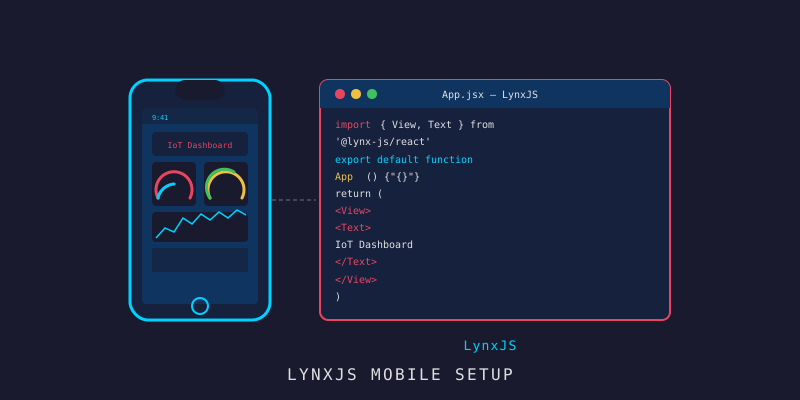
ตั้งค่า LynxJS Mobile App สำหรับ IoT
ตั้งค่า LynxJS Mobile App สำหรับ IoT
Branch:
step-10-lynx-setupPhase: Mobile (1/5) — Project Setup Repo: kangana1024/showkhun-workshop
Backend เราเสร็จแล้วครับ — ทั้ง ingestion, time-series, alerting engine ครบ แต่จะให้คนเดินไปนั่งหน้า terminal ยิง curl ดูค่า sensor มันก็ไม่ไหวใช่ไหม? วันนี้เราจะเริ่มสร้าง mobile app ที่ดูข้อมูล IoT ได้จากมือถือจริงๆ — แล้วเราจะใช้ LynxJS ครับ (ʘ‿ʘ)
ทำไม LynxJS ไม่ใช่ React Native? LynxJS (จากทีม ByteDance ที่ทำ TikTok) ให้เราเขียน UI ด้วย React mental model เดิม —
useState,useEffect, component, context ครบ — แล้ว render ออกเป็น native ผ่าน LynxExplorer ของจริง ที่สำคัญคือบทความนี้ อ้างอิงโค้ดจริงใน branchstep-10-lynx-setupทั้งหมด ไม่มี API ที่กุขึ้นมาเอง
ก่อนเริ่ม: น้องๆ จะได้อะไรจากบทนี้?
- เข้าใจ stack ของ Lynx: ReactLynx + Rspeedy และเวอร์ชันจริงของ
@lynx-js/*ที่ใช้ - scaffold project ด้วย
create-rspeedyแล้วรู้ว่าแต่ละ config ทำอะไร - สร้าง bottom tab bar 4 แท็บ (Dashboard / Devices / Alerts / Settings) แบบ state-driven
- เขียน typed REST client ที่ field ตรงกับ Go struct เป๊ะ — deserialize ได้โดยไม่ต้อง remap
- inject base URL ตอน build จาก environment เพื่อไม่ฝัง host/secret ลง bundle
- วาง theme provider (light/dark) + ชุด UI primitive ที่จะ reuse ทั้ง 5 บท
ทำไมต้องวางรากฐานก่อน? (WHY ก่อน HOW เสมอ)
ลองนึกถึงการสร้างบ้านครับ ถ้ารีบขึ้นผนังโดยไม่เทพื้นก่อน พอลมพัดทีก็ล้มทั้งหลัง บทนี้คือ การเทพื้น ของ app — navigation, API layer, theme, primitive ทั้งหมด ถ้าเราวางให้ดีตั้งแต่แรก อีก 4 บทที่เหลือ (dashboard, control, charts, alerts) จะแค่ “เอา component มาเสียบ” เท่านั้นเอง
อุปมา: typed API client เหมือน ล่ามแปลภาษา ที่ยืนอยู่ระหว่าง app (TypeScript) กับ backend (Go) ถ้าล่ามแม่น สองฝั่งคุยกันรู้เรื่องโดยไม่ต้องเดา
ภาพรวม: app นี้คุยกับ backend ยังไง?
graph LR
    A[📱 LynxJS App] -->|REST GET/POST| B[🖥️ Go Backend /api/v1]
    A <-->|WebSocket /api/v1/ws| B
    B -->|อ่าน/เขียน| C[(💾 Mongo + InfluxDB)]
    D[⚙️ lynx.config.ts] -.->|inject base URL ตอน build| A
จุดสำคัญคือ REST และ WebSocket ใช้ host เดียวกัน (ต่างแค่ scheme) และทั้งคู่ derive มาจาก env ตัวเดียวคือ SHOWKHUN_API_BASE_URL — ไม่มี host หรือ token ฝังในโค้ดเลย
Step 1: รู้จัก Stack — ReactLynx + Rspeedy
Lynx ไม่ได้มาเป็นก้อนเดียว มันเป็นชุด package เล็กๆ ที่ทำงานร่วมกัน นี่คือ package.json จริงของโปรเจกต์ (frontend-mobile/package.json):
{
  "name": "showkhun-mobile",
  "type": "module",
  "private": true,
  "scripts": {
    "build": "rspeedy build",
    "dev": "rspeedy dev",
    "preview": "rspeedy preview",
    "lint": "eslint .",
    "typecheck": "tsc --build --noEmit"
  },
  "dependencies": {
    "@lynx-js/react": "0.121.2"
  },
  "devDependencies": {
    "@lynx-js/preact-devtools": "5.0.1-20260525112551-dfe2d03",
    "@lynx-js/qrcode-rsbuild-plugin": "0.5.0",
    "@lynx-js/react-rsbuild-plugin": "0.17.0",
    "@lynx-js/rspeedy": "0.15.0",
    "@lynx-js/types": "3.7.0",
    "@rsbuild/plugin-type-check": "1.3.4",
    "typescript": "5.9.3"
  },
  "engines": {
    "node": "^20.19.0 || >=22.12.0"
  }
}
แยกบทบาทให้เห็นภาพ:
| Package | หน้าที่ |
|---|---|
@lynx-js/react (0.121.2) | React runtime ของ Lynx — useState, root.render, context ฯลฯ |
@lynx-js/rspeedy (0.15.0) | bundler/CLI (build/dev/preview) — base เป็น Rsbuild |
@lynx-js/react-rsbuild-plugin (0.17.0) | plugin ที่ทำให้ Rspeedy เข้าใจ ReactLynx |
@lynx-js/qrcode-rsbuild-plugin (0.5.0) | สร้าง QR code ให้ scan ด้วย LynxExplorer ตอน dev |
@lynx-js/types (3.7.0) | type ของ element/attribute ฝั่ง Lynx (<view>, bindtap, …) |
เกร็ด:
"type": "module"กับการ import แบบลงท้าย.js(เช่น./App.js) เป็น ESM ล้วน — TypeScript จะ resolve ไป.tsxให้เองตอน build
Step 2: Scaffold ด้วย create-rspeedy
วิธีเริ่มเร็วสุดคือใช้ตัว scaffold ของ Lynx เอง:
# สร้างโปรเจกต์ ReactLynx ใหม่ (เลือก template ReactLynx + TypeScript)
npm create rspeedy@latest

# เข้าโฟลเดอร์แล้วลง dependency ตามรายการใน package.json
cd frontend-mobile
npm install
ในโปรเจกต์เรามี script ครบสำหรับ workflow:
npm run typecheck  # tsc --build --noEmit (เช็ค type อย่างเดียว ไม่ออกไฟล์)
npm run lint       # eslint
npm run build      # rspeedy production bundle → emits dist/
npm run dev        # rspeedy dev server (โชว์ QR code ให้ scan)
npm run preview    # preview bundle ที่ build แล้ว
WHY มี typecheck/lint/build เป็น gate? Lynx render บน native จริงผ่าน LynxExplorer — เราเทสต์ทุก commit ไม่ได้ตลอด เลยใช้สามตัวนี้เป็น “ด่านตรวจ” ว่าโค้ด compile ได้และ type ถูกก่อน
Step 3: Entry Point — ประตูหน้าบ้านของ app
ทุก app ต้องมีจุดเริ่ม src/index.tsx คือ “ประตูหน้าบ้าน” — มันบอก Lynx ว่าให้ render component ไหนเป็นราก:
import '@lynx-js/preact-devtools'
import '@lynx-js/react/debug'
import { root } from '@lynx-js/react'

import { App } from './App.js'

// root.render คือจุดที่ Lynx เอา component tree ไปวาดบนหน้าจอ native
root.render(<App />)

// Hot reload: แก้โค้ดแล้วเห็นผลทันทีโดยไม่ต้อง restart
if (import.meta.webpackHot) {
  import.meta.webpackHot.accept()
}
สังเกตว่ามันคล้าย ReactDOM.createRoot(...).render(<App/>) ของ React บนเว็บมาก — นี่แหละข้อดีของ Lynx เราใช้ mental model เดิมได้เลย
Step 4: App Shell + Tab Navigation
App.tsx คือ shell ที่ครอบทุกอย่าง มันถือ state ว่าตอนนี้อยู่แท็บไหน แล้วสลับ screen ตามนั้น — navigation แบบ state-driven ตรงไปตรงมา:
import { useState } from '@lynx-js/react'

import './App.css'
import { TabBar } from './navigation/TabBar.js'
import type { TabKey } from './navigation/tabs.js'
import { AlertsScreen } from './screens/AlertsScreen.js'
import { DashboardScreen } from './screens/DashboardScreen.js'
import { DevicesScreen } from './screens/DevicesScreen.js'
import { SettingsScreen } from './screens/SettingsScreen.js'
import { ThemeProvider } from './theme/ThemeProvider.js'

function ActiveScreen(props: { tab: TabKey }) {
  switch (props.tab) {
    case 'dashboard': return <DashboardScreen />
    case 'devices':   return <DevicesScreen />
    case 'alerts':    return <AlertsScreen />
    case 'settings':  return <SettingsScreen />
    default:          return <DashboardScreen />
  }
}

export function App() {
  const [tab, setTab] = useState<TabKey>('dashboard')

  return (
    <ThemeProvider initial='light'>
      <view className='AppShell'>
        <view className='AppShell__content'>
          <ActiveScreen tab={tab} />
        </view>
        <TabBar active={tab} onChange={setTab} />
      </view>
    </ThemeProvider>
  )
}
สิ่งที่ต่างจาก React เว็บ: ไม่มี <div> แต่ใช้ <view> เป็นกล่อง layout และ <text> สำหรับข้อความ — element พวกนี้ map ไป native โดยตรง
นิยามแท็บแยกไว้ที่เดียว
navigation/tabs.ts เก็บ source of truth ของแท็บทั้งหมด เปลี่ยนที่นี่ที่เดียวพอ:
export type TabKey = 'dashboard' | 'devices' | 'alerts' | 'settings'

export interface TabDef {
  key: TabKey
  label: string
  icon: string
}

export const TABS: TabDef[] = [
  { key: 'dashboard', label: 'Dashboard', icon: '📊' },
  { key: 'devices', label: 'Devices', icon: '🔌' },
  { key: 'alerts', label: 'Alerts', icon: '🔔' },
  { key: 'settings', label: 'Settings', icon: '⚙️' },
]
TabBar เอง
navigation/TabBar.tsx แค่ map TABS ออกมาเป็นปุ่ม สังเกต bindtap — มันคือ event ของ Lynx (เทียบเท่า onClick บนเว็บ):
import './tabbar.css'
import { TABS, type TabKey } from './tabs.js'

interface TabBarProps {
  active: TabKey
  onChange: (key: TabKey) => void
}

export function TabBar(props: TabBarProps) {
  return (
    <view className='TabBar'>
      {TABS.map((tab) => {
        const isActive = tab.key === props.active
        return (
          <view
            key={tab.key}
            className={isActive ? 'TabBar__item TabBar__item--active' : 'TabBar__item'}
            bindtap={() => props.onChange(tab.key)}
          >
            <text className='TabBar__icon'>{tab.icon}</text>
            <text className='TabBar__label'>{tab.label}</text>
          </view>
        )
      })}
    </view>
  )
}
WHY state-driven แทน router library? app นี้มีแค่ 4 หน้าหลัก การใช้
useState+switchง่ายกว่า ดีบักง่ายกว่า และไม่ต้องลาก dependency เพิ่ม ส่วนการ “เข้าไปดูรายละเอียด” (เช่น device detail) เราใช้ local state ในแต่ละ screen เอง — เดี๋ยวบทหลังจะเห็น
Step 5: Config — Inject Base URL ตอน Build (ไม่ฝัง host/secret)
นี่คือส่วนที่พี่ชอบมากครับ เรา ไม่ฝัง URL ของ backend ลงในโค้ดเลย แต่ inject เข้ามาตอน build จาก environment ผ่าน lynx.config.ts:
import { defineConfig } from '@lynx-js/rspeedy'
import { pluginQRCode } from '@lynx-js/qrcode-rsbuild-plugin'
import { pluginReactLynx } from '@lynx-js/react-rsbuild-plugin'
import { pluginTypeCheck } from '@rsbuild/plugin-type-check'

export default defineConfig({
  source: {
    define: {
      // Base URL ถูก inject ตอน build จาก env — ไม่มี host/credential ฝังใน source
      // ถ้าไม่ตั้ง env จะ fallback ไป backend ของ docker-compose ตอน dev
      'process.env.SHOWKHUN_API_BASE_URL': JSON.stringify(
        process.env.SHOWKHUN_API_BASE_URL ?? 'http://localhost:3000',
      ),
    },
  },
  plugins: [
    pluginQRCode({ schema(url) { return `${url}?fullscreen=true` } }),
    pluginReactLynx(),
    pluginTypeCheck(),
  ],
})
ตั้งค่าผ่านไฟล์ .env (มี .env.example ให้ copy):
cp .env.example .env
# SHOWKHUN_API_BASE_URL=http://localhost:3000
แล้ว api/config.ts ก็อ่านค่านี้มาแปลงต่อ — รวมถึง derive WebSocket URL จาก REST base โดยสลับ scheme (https → wss, http → ws):
function readBaseUrl(): string {
  const raw = process.env.SHOWKHUN_API_BASE_URL
  if (typeof raw !== 'string' || raw.trim() === '') {
    return 'http://localhost:3000'
  }
  // ตัด trailing slash ทิ้ง เพื่อให้ต่อ path ได้คาดเดาได้
  return raw.trim().replace(/\/+$/, '')
}

export const API_BASE_URL: string = readBaseUrl()
export const API_PREFIX = '/api/v1'
export const REQUEST_TIMEOUT_MS = 10_000

/** WebSocket endpoint จาก REST base โดยสลับ scheme */
export function websocketUrl(): string {
  const httpUrl = `${API_BASE_URL}${API_PREFIX}/ws`
  if (httpUrl.startsWith('https://')) return `wss://${httpUrl.slice(8)}`
  if (httpUrl.startsWith('http://')) return `ws://${httpUrl.slice(7)}`
  return httpUrl
}
WHY แยก REST กับ WS แต่ derive จากตัวเดียว? เพราะ backend serve ทั้งคู่บน host เดียวกัน ตั้ง env ทีเดียวได้ทั้งสอง — ลดโอกาสตั้งค่าหลุดกัน
Step 6: Typed REST Client — ล่ามแปลภาษาที่แม่นยำ
หัวใจของ API layer คือ api/types.ts ที่ field ตรงกับ Go struct เป๊ะ (ตาม json:"..." tag) เพื่อให้ response deserialize ได้โดยไม่ต้อง remap เลย:
export type DeviceStatus = 'online' | 'offline' | 'error' | 'maintenance'

export interface Device {
  id: string
  device_id: string        // human-readable id (ใช้กับ command/room)
  name: string
  type: DeviceType
  status: DeviceStatus
  enabled: boolean
  last_seen_at?: string
  created_at: string
  updated_at: string
  // ... location, tags, group_id ฯลฯ
}

// envelope ที่ backend ห่อ response มา (backend/internal/httpx/response.go)
export interface DataEnvelope<T> { data: T }
export interface ListEnvelope<T> { data: T[]; pagination: Pagination }
จากนั้น api/client.ts ห่อ fetch ให้มี timeout, แปลง error envelope เป็น ApiError และคืน type ที่ถูกต้อง:
/** ApiError ถือ HTTP status + ข้อความจาก error envelope ของ backend */
export class ApiError extends Error {
  readonly status: number
  readonly fields?: Record<string, string>

  constructor(status: number, message: string, fields?: Record<string, string>) {
    super(message)
    this.name = 'ApiError'
    this.status = status
    this.fields = fields
  }

  get notFound(): boolean {
    return this.status === 404
  }
}
ทุก request ถูกหุ้มด้วย AbortController + timeout 10 วินาที ถ้า request ไหนช้าเกินหรือ caller ยกเลิก ก็ abort ทิ้ง:
async function request<T>(path: string, opts: RequestOptions = {}): Promise<T> {
  const controller = new AbortController()
  const timer = setTimeout(() => controller.abort(), REQUEST_TIMEOUT_MS)
  // ...ถ้า caller มี signal เองก็ผูกให้ abort พร้อมกัน...

  try {
    const response = await fetch(buildUrl(path, opts.query), {
      method: opts.method ?? 'GET',
      headers,
      body: serializedBody,
      signal: controller.signal,
    })

    if (response.status === 204) return undefined as T

    const text = await response.text()
    const parsed: unknown = text ? JSON.parse(text) : undefined

    if (!response.ok) {
      if (isErrorBody(parsed)) {
        throw new ApiError(response.status, parsed.error.message, parsed.error.fields)
      }
      throw new ApiError(response.status, `request failed (${response.status})`)
    }
    return parsed as T
  } catch (err) {
    if (err instanceof ApiError) throw err
    if (err instanceof DOMException && err.name === 'AbortError') {
      throw new ApiError(0, 'request timed out')
    }
    throw new ApiError(0, 'network error')
  } finally {
    clearTimeout(timer)
  }
}
แล้วก็ export เป็น api object ที่มี method ตรงกับ endpoint จริงของ backend:
export const api = {
  listDevices,    // GET    /api/v1/devices
  getDevice,      // GET    /api/v1/devices/:id
  sendCommand,    // POST   /api/v1/devices/:id/commands
  getReadings,    // GET    /api/v1/devices/:id/readings
  listAlertRules, // GET    /api/v1/alert-rules
  getAlertRule,   // GET    /api/v1/alert-rules/:id
}
WHY ห่อ
fetchเอง? เพราะเราอยากได้ behavior สม่ำเสมอทุก call: timeout, error เป็น type เดียว (ApiError), unwrap envelope ให้แล้ว — screen ปลายทางจะได้ branch ง่ายๆ ด้วยerr instanceof ApiErrorและerr.notFound
Step 7: Theme Provider + UI Primitives
ก่อนจบ เราวาง theme (light/dark) ด้วย context ปกติของ React theme/ThemeProvider.tsx ถือ state แล้วสะท้อนลง <view data-theme=...> เพื่อให้ CSS variable ใน theme.css ใช้ได้ทั้ง subtree:
export function ThemeProvider(props: ThemeProviderProps) {
  const [theme, setTheme] = useState<ThemeName>(props.initial ?? 'light')

  const toggle = useCallback(() => {
    setTheme((prev) => (prev === 'light' ? 'dark' : 'light'))
  }, [])

  const value = useMemo(() => ({ theme, toggle, setTheme }), [theme, toggle])

  return (
    <ThemeContext.Provider value={value}>
      <view data-theme={theme} className='ThemeRoot'>
        {props.children}
      </view>
    </ThemeContext.Provider>
  )
}
ส่วน ui/ มี primitive ที่จะ reuse ทุกบท: Card, Button, Badge, ScreenHeader ดูตัวอย่าง Badge ที่ใช้ทำ pill บอกสถานะ:
export type BadgeTone = 'neutral' | 'success' | 'warning' | 'danger' | 'info'

export function Badge(props: { label: string; tone?: BadgeTone }) {
  const tone = props.tone ?? 'neutral'
  return (
    <view className={`Badge Badge--${tone}`}>
      <text className='Badge__label'>{props.label}</text>
    </view>
  )
}
แล้วมี helper ui/status.ts map สถานะ → tone สี เพื่อให้ทั้ง app ใช้สีเดียวกัน:
export function deviceStatusTone(status: DeviceStatus): BadgeTone {
  switch (status) {
    case 'online':      return 'success'
    case 'offline':     return 'neutral'
    case 'error':       return 'danger'
    case 'maintenance': return 'warning'
    default:            return 'neutral'
  }
}
ในบทนี้ 4 screen หลักยังเป็น placeholder (navigable shell) — มีแต่ ScreenHeader + Card ว่างๆ ยกเว้น SettingsScreen ที่ใช้งานได้แล้ว: สลับ theme และโชว์ค่า API_BASE_URL ที่ inject เข้ามา ยืนยันว่า config layer ทำงานจริง
export function SettingsScreen() {
  const { theme, toggle } = useTheme()
  return (
    <view className='Screen'>
      <ScreenHeader title='Settings' subtitle='Appearance and connection' />
      <view className='Screen__body'>
        <Card>
          <Badge label={theme === 'dark' ? 'Dark' : 'Light'} tone='info' />
          <Button
            label={theme === 'dark' ? 'Switch to light' : 'Switch to dark'}
            variant='secondary'
            onTap={toggle}
          />
        </Card>
        <Card>
          <text className='Settings__rowLabel'>Backend</text>
          <text className='Settings__value'>{API_BASE_URL}</text>
        </Card>
      </view>
    </view>
  )
}
Step 8: รันบนเครื่องจริงด้วย LynxExplorer
Lynx ไม่ได้ render ใน browser แต่ render ผ่านแอป LynxExplorer (iOS/Android) วิธีรัน:
npm run dev
# Rspeedy จะ print QR code ออกมาที่ terminal
# เปิดแอป LynxExplorer แล้ว scan QR → bundle จะโหลดขึ้นเครื่อง/simulator
เมื่อ scan QR แล้วเห็น 4 แท็บโผล่บนมือถือ:
╔══════════════════════════════════╗
║ ║
║ \(^o^)/ It runs! ║
║ ║
║ "เขียน React → ได้ native app" ║
║ ║
╚══════════════════════════════════╝สรุป: บทนี้เราวางอะไรไปบ้าง
| ส่วนประกอบ | รายละเอียด |
|---|---|
| Stack | ReactLynx (@lynx-js/react 0.121.2) + Rspeedy (0.15.0) |
| Entry | index.tsx → root.render(<App />) + hot reload |
| Navigation | bottom tab bar 4 แท็บ แบบ state-driven (ไม่ใช้ router lib) |
| Config | inject base URL ตอน build ผ่าน lynx.config.ts (ไม่ฝัง host/secret) |
| API client | typed REST client, field ตรง Go struct, timeout + ApiError |
| Theme | provider light/dark ผ่าน context + CSS variable |
| UI | primitive Card/Button/Badge/ScreenHeader + helper สี |
บทนี้น้องอาจยังไม่เห็น “ของเล่น” หวือหวา เพราะมันคือการ เทพื้นคอนกรีต — ไม่สวย แต่ถ้าไม่มี ทุกอย่างข้างบนพังหมด ดีตรงที่ทุกอย่างวางบน type ที่ตรงกับ backend แล้ว บทต่อๆ ไปจะแค่เอา component มาเสียบ
Next Step
บทหน้าเราจะปลุก DashboardScreen ให้มีชีวิต — เชื่อม WebSocket hub เพื่อดูค่า sensor แบบ real-time พร้อม auto-reconnect และ pull-to-refresh มาลุยกันต่อ! (^_^)v
Navigation:
- Prev: #12 Go Alerting Engine
- Next: #14 Real-time Dashboard