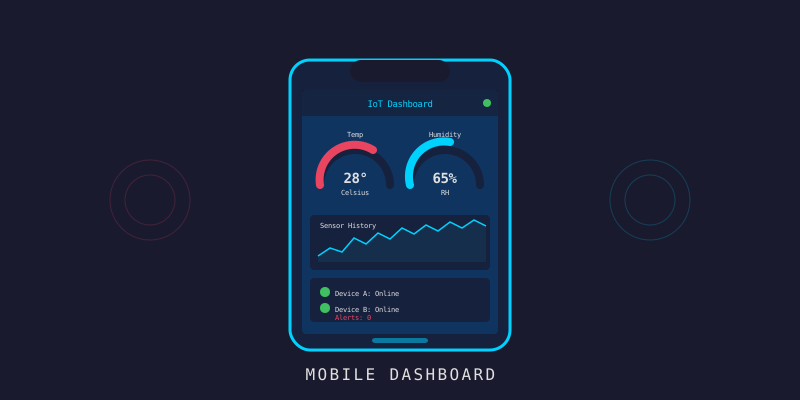
สร้าง Real-time Dashboard ด้วย LynxJS
สร้าง Real-time Dashboard ด้วย LynxJS
Branch:
step-11-mobile-dashboardPhase: Mobile (2/5) — Real-time Dashboard Repo: kangana1024/showkhun-workshop
บทที่แล้วเราวางรากฐานเสร็จ แต่ DashboardScreen ยังเป็นกล่องเปล่าที่เขียนว่า “Real-time sensor data will appear here.” อยู่เลย วันนี้เราจะทำให้คำพูดนั้นเป็นจริง — เปิด app ปุ๊บ ค่า sensor ไหลเข้ามาเองแบบสดๆ ไม่ต้องกด refresh ทุกครั้ง (ノ◕ヮ◕)ノ
WHY WebSocket ไม่ใช่ polling? ถ้าเรา poll ทุก 2 วินาที มันเปลือง battery, เปลือง bandwidth และยังช้าด้วย (ค่าเปลี่ยนแล้วต้องรอรอบถัดไป) WebSocket เปิดท่อค้างไว้ พอ backend มีค่าใหม่ก็ push มาทันที — เหมือนต่อสายโทรศัพท์ค้างไว้แทนการโทรถามทุกนาที บทความนี้อ้างอิงโค้ดจริงใน branch
step-11-mobile-dashboard
ก่อนเริ่ม: น้องๆ จะได้อะไรจากบทนี้?
- เข้าใจ protocol ของ WebSocket hub ฝั่ง backend: subscribe/unsubscribe ห้อง + envelope
{type, room, payload} - เขียน
RealtimeClientที่ wrap socket เดียว พร้อม auto-reconnect แบบ exponential backoff - re-subscribe ทุกห้องอัตโนมัติ “ทุกครั้ง” ที่ (re)connect
- merge live reading เข้า device list โดยไม่ re-fetch
- ทำ pull-to-refresh ด้วย
scroll-viewของ Lynx - จัดการ connection state (Live / Connecting / Reconnecting / Disconnected) ให้ user เห็น
ภาพรวม: data ไหลจาก sensor มาถึงจอยังไง?
graph LR
    A[🌡️ Sensor] -->|ingest| B[🖥️ Backend]
    B -->|broadcast ห้อง device:xxx| C[📡 WebSocket Hub]
    C -->|sensor_data envelope| D[RealtimeClient]
    D -->|merge เข้า state| E[📱 DashboardScreen]
    F[REST /devices] -->|โหลดทะเบียน device ทีเดียว| E
หัวใจคือ REST โหลด “ทะเบียน device” ครั้งเดียว แล้ว WebSocket คอย push ค่าล่าสุด เข้ามาเรื่อยๆ — เราไม่ยิง REST ซ้ำทุกครั้งที่ค่าเปลี่ยน
Step 1: เข้าใจ Protocol ของ Hub ก่อน
ก่อนเขียน client เราต้องรู้ว่า backend พูดภาษาอะไร hub (backend/internal/ws) ทำงานแบบ room-based: client ส่งคำสั่ง subscribe/unsubscribe เข้าห้อง แล้ว backend จะ broadcast เฉพาะข้อความของห้องนั้นมาให้
ข้อความที่ client ส่งไป (inbound command):
{ "action": "subscribe", "room": "device:sensor-01" }action เป็น "subscribe" หรือ "unsubscribe" และ room ต้องขึ้นต้นด้วย device: หรือ group: เท่านั้น (backend validate prefix ถ้าผิดจะตอบ error)
ข้อความที่ backend ส่งกลับ (envelope):
{ "type": "sensor_data", "room": "device:sensor-01", "payload": { "device_id": "sensor-01", "fields": { "temperature": 27.4 }, "timestamp": "2026-03-26T10:00:00Z" } }ฝั่ง type เราประกาศไว้ใน api/types.ts ให้ตรงกับ struct ของ backend เป๊ะ:
// payload ของข้อความ sensor_data (backend/internal/service/sensor.go)
export interface LiveReading {
  device_id: string
  group_id?: string
  fields: Record<string, number>
  tags?: Record<string, string>
  timestamp: string
}

// envelope ที่ hub broadcast (backend/internal/ws/hub.go)
export interface WSMessage<T = unknown> {
  type: string
  room?: string
  payload: T
}
Step 2: RealtimeClient — ผู้จัดการ WebSocket
Lynx มี WebSocket ของตัวเองผ่าน package @lynx-js/websocket (เวอร์ชัน 0.0.4 ใน package.json) เราจะ wrap มันเป็น class RealtimeClient (api/realtime.ts) ที่จัดการเรื่องยากๆ ให้หมด: backoff, re-subscribe, decode
ก่อนอื่น helper สร้างชื่อห้องให้ตรงกับ backend (ws.DeviceRoom):
import { WebSocket } from '@lynx-js/websocket'

import { websocketUrl } from './config.js'
import type { LiveReading, WSMessage } from './types.js'

export type ConnectionState = 'connecting' | 'open' | 'closed' | 'reconnecting'

/** ชื่อห้องของ device หนึ่งตัว (ตรงกับ backend ws.DeviceRoom) */
export function deviceRoom(deviceId: string): string {
  return `device:${deviceId}`
}

/** ชื่อห้องของ group หนึ่งกลุ่ม (ตรงกับ backend ws.GroupRoom) */
export function groupRoom(groupId: string): string {
  return `group:${groupId}`
}
connect / close / subscribe
class เก็บ “ห้องที่อยากอยู่” ไว้ใน desiredRooms เพื่อให้ re-subscribe ได้เวลา reconnect:
const INITIAL_BACKOFF_MS = 1_000
const MAX_BACKOFF_MS = 30_000

export class RealtimeClient {
  private socket: WebSocket | null = null
  private desiredRooms = new Set<string>()
  private backoff = INITIAL_BACKOFF_MS
  private reconnectTimer: ReturnType<typeof setTimeout> | null = null
  private closedByUser = false

  /** เปิด connection (เรียกซ้ำได้ ถ้าเปิด/กำลังเปิดอยู่จะไม่ทำอะไร) */
  connect(): void {
    if (this.socket || this.reconnectTimer) return
    this.closedByUser = false
    this.open()
  }

  /** ปิดถาวร + ยกเลิก reconnect ที่ค้างอยู่ */
  close(): void {
    this.closedByUser = true
    if (this.reconnectTimer) {
      clearTimeout(this.reconnectTimer)
      this.reconnectTimer = null
    }
    this.teardownSocket()
    this.setState('closed')
  }

  /** subscribe ห้อง แล้วส่งคำสั่งทันทีถ้าต่ออยู่ */
  subscribe(room: string): void {
    this.desiredRooms.add(room)
    this.sendCommand('subscribe', room)
  }
}
setRooms — เปลี่ยนชุดห้องทั้งหมดทีเดียว
dashboard จะ subscribe ทุก device ในทะเบียน เราเลยมี setRooms ที่ diff ของเก่ากับใหม่ แล้ว sub/unsub เฉพาะส่วนต่าง:
  /** แทนที่ชุดห้องที่ subscribe ทั้งหมดด้วย rooms ที่ส่งมา */
  setRooms(rooms: string[]): void {
    const next = new Set(rooms)
    // เลิก subscribe ห้องที่ไม่อยู่ในชุดใหม่
    Array.from(this.desiredRooms).forEach((room) => {
      if (!next.has(room)) this.unsubscribe(room)
    })
    // subscribe ห้องใหม่ที่ยังไม่มี
    rooms.forEach((room) => {
      if (!this.desiredRooms.has(room)) this.subscribe(room)
    })
  }
Step 3: Auto-reconnect แบบ Exponential Backoff
นี่คือส่วนที่ทำให้ app “ทน” ครับ ลองนึกภาพ user เดินเข้าลิฟต์ WiFi หลุด — ถ้า socket ตายแล้วไม่ต่อใหม่ dashboard ก็ค้างตาย เราจึงต่อใหม่อัตโนมัติ แต่ เว้นระยะแบบทวีคูณ (1s → 2s → 4s … สูงสุด 30s) ไม่ให้กระหน่ำ server ตอนมันล่ม
อุปมา: เหมือนโทรหาเพื่อนแล้วไม่รับ เราไม่กดโทรซ้ำรัวๆ ทุกวินาที แต่เว้นนานขึ้นเรื่อยๆ จนกว่าจะติด
  private open(): void {
    this.setState(this.backoff === INITIAL_BACKOFF_MS ? 'connecting' : 'reconnecting')
    let socket: WebSocket
    try {
      socket = new WebSocket(websocketUrl())
    } catch {
      this.scheduleReconnect()
      return
    }
    this.socket = socket

    socket.onopen = () => {
      this.backoff = INITIAL_BACKOFF_MS  // ต่อติดแล้ว reset backoff
      this.setState('open')
      // re-subscribe ทุกห้องที่อยากอยู่ ทุกครั้งที่ (re)connect
      this.desiredRooms.forEach((room) => this.sendCommand('subscribe', room))
    }

    socket.onmessage = (event) => this.handleMessage(event.data)
    socket.onerror = () => this.handlers.onError?.('websocket error')

    socket.onclose = () => {
      this.teardownSocket()
      if (!this.closedByUser) this.scheduleReconnect()
    }
  }

  private scheduleReconnect(): void {
    this.setState('reconnecting')
    const delay = this.backoff
    this.backoff = Math.min(this.backoff * 2, MAX_BACKOFF_MS) // ทวีคูณ จำกัดที่ 30s
    this.reconnectTimer = setTimeout(() => {
      this.reconnectTimer = null
      if (!this.closedByUser) this.open()
    }, delay)
  }
จุดที่พี่อยากให้สังเกตคือใน onopen เรา re-subscribe ทุกห้องใหม่หมด — เพราะตอน socket ตาย backend ลืม subscription ของเราไปแล้ว พอต่อใหม่ต้องบอกใหม่ว่า “ขอฟังห้องพวกนี้นะ”
decode ข้อความขาเข้า
handleMessage parse JSON แล้วแยกตาม type — เฉพาะ sensor_data ที่มี device_id ถึงจะส่งต่อ:
  private handleMessage(data: unknown): void {
    if (typeof data !== 'string') return
    let msg: WSMessage
    try {
      msg = JSON.parse(data) as WSMessage
    } catch {
      return  // ข้อความพัง? ข้ามไป ไม่ทำให้ทั้ง client ล้ม
    }
    if (msg.type === 'sensor_data') {
      const payload = msg.payload as LiveReading
      if (payload && typeof payload.device_id === 'string') {
        this.handlers.onSensorData?.(payload, msg.room ?? '')
      }
    } else if (msg.type === 'error') {
      const message = typeof msg.payload === 'string' ? msg.payload : 'server error'
      this.handlers.onError?.(message)
    }
  }
Step 4: useDashboard — รวม REST + WebSocket เป็น hook เดียว
ตอนนี้เรามี client แล้ว แต่ screen ไม่ควรไปยุ่งกับ socket ตรงๆ เราห่อทุกอย่างเป็น custom hook useDashboard (screens/useDashboard.ts) ที่: โหลด device จาก REST → subscribe ทุกห้อง → merge live reading เข้า state
export function useDashboard(): DashboardState {
  const [devices, setDevices] = useState<Device[]>([])
  const [live, setLive] = useState<Record<string, { fields: Record<string, number>; updatedAt: string }>>({})
  const [loading, setLoading] = useState(true)
  const [refreshing, setRefreshing] = useState(false)
  const [error, setError] = useState<string | null>(null)
  const [connection, setConnection] = useState<ConnectionState>('connecting')

  const clientRef = useRef<RealtimeClient | null>(null)
  const abortRef = useRef<AbortController | null>(null)

  const load = useCallback(async (isRefresh: boolean) => {
    abortRef.current?.abort()
    const controller = new AbortController()
    abortRef.current = controller
    if (isRefresh) setRefreshing(true)
    else setLoading(true)
    setError(null)
    try {
      const { devices: list } = await api.listDevices({ limit: 100, sort: 'name' }, controller.signal)
      setDevices(list)
      // subscribe ห้อง live ของทุก device
      clientRef.current?.setRooms(list.map((d) => deviceRoom(d.device_id)))
    } catch (err) {
      setError(err instanceof ApiError ? err.message : 'failed to load devices')
    } finally {
      setLoading(false)
      setRefreshing(false)
    }
  }, [])

  // ...
}
หัวใจการ merge อยู่ใน useEffect ที่สร้าง client ครั้งเดียว แล้ว update เฉพาะ device ที่มีค่าใหม่:
  useEffect(() => {
    const client = new RealtimeClient({
      onStateChange: setConnection,
      onSensorData: (reading: LiveReading) => {
        setLive((prev) => ({
          ...prev,
          [reading.device_id]: {
            fields: reading.fields,
            updatedAt: reading.timestamp,
          },
        }))
      },
    })
    clientRef.current = client
    client.connect()
    void load(false)

    return () => {
      abortRef.current?.abort()
      client.close()      // สำคัญ! ปิด socket ตอน unmount กัน leak
      clientRef.current = null
    }
  }, [load])
แล้วก็ “เชื่อม” device list กับ live data เข้าด้วยกันก่อนคืนออกไป — device ที่ยังไม่มีค่า live ก็จะแสดงว่ารอข้อมูล:
  const items: DeviceLive[] = devices.map((device) => {
    const l = live[device.device_id]
    return { device, fields: l?.fields, updatedAt: l?.updatedAt }
  })
WHY แยกเป็น hook? เพราะมันทำให้ screen “โง่” ที่สุดเท่าที่ได้ — screen แค่ render state ส่วน logic เรื่อง network/reconnect/merge อยู่ในที่เดียว test ง่าย reuse ง่าย
Step 5: หน้าจอ — Connection Status + Pull-to-refresh
DashboardScreen เอา state จาก hook มา render มี dot บอกสถานะการเชื่อมต่อด้านบน:
function connectionLabel(state: ConnectionState): string {
  switch (state) {
    case 'open':         return 'Live'
    case 'connecting':   return 'Connecting…'
    case 'reconnecting': return 'Reconnecting…'
    case 'closed':       return 'Disconnected'
    default:             return ''
  }
}
pull-to-refresh ใน Lynx ทำผ่าน scroll-view — เมื่อ scroll ถึงขอบบน (bindscrolltoupper) ก็ re-fetch:
export function DashboardScreen() {
  const { loading, refreshing, error, connection, items, refresh } = useDashboard()

  const onScrollToUpper = () => {
    // ถึงขอบบน = ดึงรายการ device ใหม่
    if (!refreshing && !loading) refresh()
  }

  return (
    <view className='Screen'>
      <ScreenHeader title='Dashboard' subtitle='Live sensor overview'
        action={{ label: 'Refresh', onTap: refresh }} />

      <view className='Dashboard__status'>
        <view className={`Dashboard__statusDot Dashboard__statusDot--${connection}`} />
        <text className='Dashboard__statusText'>{connectionLabel(connection)}</text>
      </view>

      {loading ? (
        <StateBlock title='Loading devices…' />
      ) : error ? (
        <StateBlock title='Could not load devices' text={error}
          action={{ label: 'Try again', onTap: refresh }} />
      ) : items.length === 0 ? (
        <StateBlock title='No devices yet'
          text='Register a device to see live readings here.'
          action={{ label: 'Refresh', onTap: refresh }} />
      ) : (
        <scroll-view className='Dashboard__scroll' scroll-orientation='vertical'
          upper-threshold={4} bindscrolltoupper={onScrollToUpper}>
          <view className='Screen__body'>
            <text className='Dashboard__refreshHint'>
              {refreshing ? 'Refreshing…' : 'Pull down to refresh'}
            </text>
            {items.map((item) => (
              <SensorCard key={item.device.id} item={item} />
            ))}
          </view>
        </scroll-view>
      )}
    </view>
  )
}
เกร็ด: เราแยก state เป็น
loading(ครั้งแรก) กับrefreshing(ดึงซ้ำ) — ครั้งแรกโชว์ skeleton เต็มจอ แต่ refresh แค่โชว์ hint เล็กๆ ไม่ให้กระพริบทั้งหน้า
Step 6: SensorCard — แสดงค่าแต่ละ device
แต่ละการ์ดโชว์ชื่อ device, badge สถานะ, แล้ว map ทุก field ใน reading ออกมา ถ้ายังไม่มีค่า live ก็โชว์ “Waiting for live data…”:
export function SensorCard(props: SensorCardProps) {
  const { device, fields, updatedAt } = props.item
  const entries = fields ? Object.entries(fields) : []

  return (
    <Card bindtap={props.onTap}>
      <view className='SensorCard__head'>
        <view className='SensorCard__titleBox'>
          <text className='SensorCard__name'>{device.name}</text>
          <text className='SensorCard__id'>{device.device_id}</text>
        </view>
        <Badge label={device.status} tone={deviceStatusTone(device.status)} />
      </view>

      {entries.length > 0 ? (
        <view className='SensorCard__metrics'>
          {entries.map(([field, value]) => (
            <view key={field} className='SensorCard__metric'>
              <text className='SensorCard__metricValue'>{formatValue(value)}</text>
              <text className='SensorCard__metricLabel'>{humanize(field)}</text>
            </view>
          ))}
        </view>
      ) : (
        <text className='SensorCard__waiting'>Waiting for live data…</text>
      )}

      <text className='SensorCard__updated'>{timeAgo(updatedAt)}</text>
    </Card>
  )
}
helper เล็กๆ ใน ui/format.ts ช่วยให้ตัวเลขสวยและเวลาอ่านง่าย เช่น timeAgo ที่แปลง ISO timestamp เป็น “just now” / ”12s ago” / “3m ago”:
export function timeAgo(iso?: string): string {
  if (!iso) return 'no data yet'
  const then = Date.parse(iso)
  if (Number.isNaN(then)) return 'no data yet'
  const seconds = Math.max(0, Math.floor((Date.now() - then) / 1000))
  if (seconds < 5) return 'just now'
  if (seconds < 60) return `${seconds}s ago`
  const minutes = Math.floor(seconds / 60)
  if (minutes < 60) return `${minutes}m ago`
  const hours = Math.floor(minutes / 60)
  if (hours < 24) return `${hours}h ago`
  return `${Math.floor(hours / 24)}d ago`
}
เมื่อค่า temperature ไหลเข้ามาเองโดยไม่ต้องกดอะไร:
╔══════════════════════════════════╗
║ ║
║ (☞ ゚ヮ゚)☞ Live data! ║
║ ║
║ "ค่ามันขยับเองได้ด้วยเหรอ" ║
║ ║
╚══════════════════════════════════╝สรุป: บทนี้เราทำอะไรไปบ้าง
| ส่วนประกอบ | รายละเอียด |
|---|---|
| Transport | @lynx-js/websocket (0.0.4) ต่อ hub ที่ /api/v1/ws |
| Protocol | subscribe/unsubscribe ห้อง device:/group: + envelope {type, room, payload} |
| RealtimeClient | socket เดียว + auto-reconnect (backoff 1s→30s) + re-subscribe ทุก (re)connect |
| useDashboard | REST โหลดทะเบียน device ครั้งเดียว → merge live reading เข้า state |
| Screen | dot บอก connection state, scroll-view + bindscrolltoupper ทำ pull-to-refresh |
| SensorCard | map ทุก field, badge สถานะ, “time ago” |
ตอนนี้ dashboard มีชีวิตแล้วครับ — เปิดมาก็เห็นค่าไหลเข้าเอง สาย WiFi หลุดก็ต่อกลับเองโดยไม่ค้าง
Next Step
ดูค่าได้แล้ว ต่อไปเราอยาก สั่งการ บ้าง! บทหน้าจะทำ DevicesScreen ให้ค้นหา/กรอง device, เข้าไปดูรายละเอียด แล้ว ส่ง command (เปิด/ปิด/reboot) ผ่าน POST /api/v1/devices/:id/commands พร้อม dialog ยืนยันกัน fat-finger มาลุยกันต่อ! (^_^)v
Navigation:
- Prev: #13 LynxJS Mobile App Setup
- Next: #15 Device Control