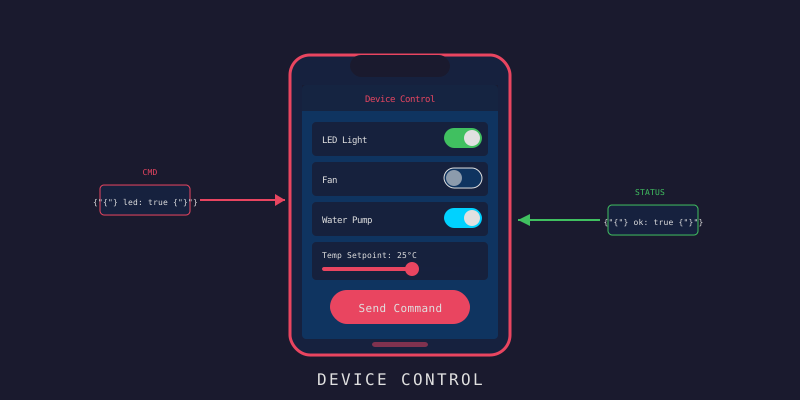
LynxJS ควบคุม IoT Devices จากมือถือ
LynxJS ควบคุม IoT Devices จากมือถือ
Branch:
step-12-mobile-controlPhase: Mobile (3/5) — Device Control Repo: kangana1024/showkhun-workshop
ดูค่า sensor ได้แล้วมันก็ดี แต่ IoT ที่แท้จริงคือต้อง สั่งการได้ด้วย ใช่ไหมครับ? เปิดไฟจากมือถือ, reboot gateway ที่ค้าง, arm sensor ตรวจจับการเคลื่อนไหวก่อนออกจากบ้าน วันนี้เราจะทำหน้าจอที่ทำได้ทั้งหมดนั้น — list device, ค้นหา, กรอง, แล้วส่ง command จริงไป backend (◣_◢)
WHY ต้องมี dialog ยืนยันก่อนสั่ง? ลองคิดดูว่าถ้าปุ่ม “Turn off” กับ “Reboot” อยู่ติดกัน แล้วนิ้วโป้งเรากดพลาด — device ดับกลางดึกโดยไม่ตั้งใจ การมี confirmation dialog สำหรับ action ที่อันตรายคือการกัน “fat-finger” ที่ถูกที่สุด บทความนี้อ้างอิงโค้ดจริงใน branch
step-12-mobile-control
ก่อนเริ่ม: น้องๆ จะได้อะไรจากบทนี้?
- ทำ device list ที่ ค้นหา + กรองสถานะแบบ server-side (debounce + abort request เก่า)
- เข้าใจ pattern การ “เข้าหน้า detail” ด้วย local state (ไม่ต้องใช้ router)
- ส่ง command จริง ผ่าน
POST /api/v1/devices/:id/commands - จัด command preset ตามชนิด device (relay/motion/gateway/…)
- ทำ confirmation dialog กัน fat-finger สำหรับ action ที่ destructive
- input/chips ของ Lynx:
bindinput(uncontrolled) และscroll-viewแนวนอน
ภาพรวม: flow การสั่งงาน device
graph TD
    A[📋 DevicesScreen] -->|ค้นหา/กรอง| B[GET /devices?search=&status=]
    A -->|แตะ row| C[🔍 DeviceDetail]
    C -->|GET /devices/:id| D[โหลดข้อมูล device]
    C -->|แตะปุ่ม command| E[🛡️ Confirm Dialog]
    E -->|ยืนยัน| F[POST /devices/:id/commands]
    F -->|ตอบ accepted| G[💬 feedback บนจอ]
Step 1: useDevices — ค้นหา/กรองแบบ Server-side
แทนที่จะโหลด device มาทั้งหมดแล้วกรองในเครื่อง (เปลือง ถ้ามี device เป็นพัน) เราให้ backend กรองให้ ผ่าน query param search กับ status hook useDevices (screens/useDevices.ts) จัดการ debounce + abort ให้:
export function useDevices(): DevicesState {
  const [devices, setDevices] = useState<Device[]>([])
  const [loading, setLoading] = useState(true)
  const [refreshing, setRefreshing] = useState(false)
  const [error, setError] = useState<string | null>(null)
  const [search, setSearch] = useState('')
  const [status, setStatus] = useState<StatusFilter>('all')

  const abortRef = useRef<AbortController | null>(null)

  const load = useCallback(
    async (opts: { search: string; status: StatusFilter; refresh: boolean }) => {
      abortRef.current?.abort()           // ยกเลิก request เก่าที่ยังค้าง
      const controller = new AbortController()
      abortRef.current = controller

      if (opts.refresh) setRefreshing(true)
      else setLoading(true)
      setError(null)

      const params: ListDevicesParams = { limit: 100, sort: 'name' }
      const trimmed = opts.search.trim()
      if (trimmed) params.search = trimmed
      if (opts.status !== 'all') params.status = opts.status

      try {
        const { devices: list } = await api.listDevices(params, controller.signal)
        setDevices(list)
      } catch (err) {
        if (controller.signal.aborted) return  // ถูก abort? เงียบไว้
        setError(err instanceof ApiError ? err.message : 'failed to load devices')
      } finally {
        if (!controller.signal.aborted) {
          setLoading(false)
          setRefreshing(false)
        }
      }
    },
    [],
  )
}
ส่วน debounce คือกุญแจ — เราไม่ยิง request ทุกตัวอักษรที่ user พิมพ์ แต่รอ 250ms ให้พิมพ์เสร็จก่อน:
  // โหลดใหม่เมื่อ search หรือ status เปลี่ยน (debounce 250ms)
  useEffect(() => {
    const handle = setTimeout(() => {
      void load({ search, status, refresh: false })
    }, 250)
    return () => clearTimeout(handle)  // ยกเลิก timer เก่าถ้าพิมพ์ต่อ
  }, [search, status, load])
อุปมา debounce: เหมือนพนักงานต้อนรับที่รอให้เราพูดประโยคจบก่อน ค่อยจดออเดอร์ ไม่ใช่จดทีละพยางค์ที่เราพูด
Step 2: SearchInput + FilterChips — Input ของ Lynx
ฝั่ง UI ใน Lynx text input เป็น uncontrolled — เราไม่ push ค่ากลับด้วย value prop แต่ฟังผ่าน bindinput:
import type { BaseEvent } from '@lynx-js/types'

interface InputDetail { value: string }

export function SearchInput(props: SearchInputProps) {
  const handleInput = (e: BaseEvent<'bindinput', InputDetail>) => {
    props.onChange(e.detail.value)   // ค่าปัจจุบันอยู่ใน e.detail.value
  }
  return (
    <view className='SearchInput'>
      <text className='SearchInput__icon'>🔍</text>
      <input
        className='SearchInput__field'
        placeholder={props.placeholder ?? 'Search'}
        type='text'
        maxlength={128}
        bindinput={handleInput}
      />
    </view>
  )
}
FilterChips เป็น single-select แนวนอน วางบน scroll-view ที่ scroll ได้ (เผื่อ chip เยอะ):
export function FilterChips<T extends string>(props: FilterChipsProps<T>) {
  return (
    <scroll-view className='FilterChips' scroll-orientation='horizontal'>
      <view className='FilterChips__row'>
        {props.options.map((opt) => {
          const isActive = opt.value === props.active
          return (
            <view key={opt.value}
              className={isActive ? 'Chip Chip--active' : 'Chip'}
              bindtap={() => props.onSelect(opt.value)}>
              <text className={isActive ? 'Chip__label Chip__label--active' : 'Chip__label'}>
                {opt.label}
              </text>
            </view>
          )
        })}
      </view>
    </scroll-view>
  )
}
Step 3: DevicesScreen — List + เข้า Detail ด้วย Local State
จำที่บอกในบทแรกได้ไหมว่าเราไม่ใช้ router? การ “เข้าไปดู detail” เราใช้ local state selectedId ง่ายๆ ถ้ามีค่าก็ render DeviceDetail, ถ้าไม่มีก็ render list:
export function DevicesScreen() {
  const state = useDevices()
  const [selectedId, setSelectedId] = useState<string | null>(null)

  // มี selectedId = แสดงหน้า detail แทน
  if (selectedId) {
    return <DeviceDetail deviceId={selectedId} onBack={() => setSelectedId(null)} />
  }

  return (
    <view className='Screen'>
      <ScreenHeader title='Devices' subtitle='Manage and control devices'
        action={{ label: 'Refresh', onTap: state.refresh }} />
      <view className='Screen__body'>
        <SearchInput placeholder='Search by name or id' onChange={state.setSearch} />
        <FilterChips options={STATUS_OPTIONS} active={state.status} onSelect={state.setStatus} />
      </view>

      {/* loading / error / empty / list ... */}
      <scroll-view className='Devices__scroll' scroll-orientation='vertical'>
        <view className='Screen__body'>
          {state.devices.map((device) => (
            <DeviceRow key={device.id} device={device}
              onTap={() => setSelectedId(device.device_id)} />
          ))}
        </view>
      </scroll-view>
    </view>
  )
}
ตัวเลือกกรองสถานะตรงกับ DeviceStatus ของ backend ทุกค่า:
const STATUS_OPTIONS: ChipOption<StatusFilter>[] = [
  { value: 'all', label: 'All' },
  { value: 'online', label: 'Online' },
  { value: 'offline', label: 'Offline' },
  { value: 'error', label: 'Error' },
  { value: 'maintenance', label: 'Maintenance' },
]
Step 4: Command Preset ตามชนิด Device
ไม่ใช่ทุก device จะสั่งเหมือนกัน — relay มี “เปิด/ปิด”, motion sensor มี “arm/disarm”, gateway มี “sync” เราจึง map command ตาม DeviceType ใน screens/commands.ts:
export interface CommandPreset {
  label: string
  /** action ต้องผ่าน validator ของ backend: ตัวอักษร/ตัวเลข + dash */
  command: CommandPayload
  destructive?: boolean   // true = ต้องยืนยันแบบเน้นสีแดง
}

// command ที่ทุก device มีเหมือนกัน
const COMMON: CommandPreset[] = [
  { label: 'Reboot', command: { action: 'reboot' }, destructive: true },
  { label: 'Refresh status', command: { action: 'refresh-status' } },
]

const BY_TYPE: Record<DeviceType, CommandPreset[]> = {
  relay: [
    { label: 'Turn on', command: { action: 'turn-on' } },
    { label: 'Turn off', command: { action: 'turn-off' }, destructive: true },
  ],
  temperature_humidity: [
    { label: 'Calibrate', command: { action: 'calibrate' } },
  ],
  motion: [
    { label: 'Arm', command: { action: 'arm' } },
    { label: 'Disarm', command: { action: 'disarm' }, destructive: true },
  ],
  gateway: [
    { label: 'Sync devices', command: { action: 'sync' } },
  ],
}

/** คืน preset ของ device type นั้น (เฉพาะของชนิด + ของ common) */
export function commandsForType(type: DeviceType): CommandPreset[] {
  return [...(BY_TYPE[type] ?? []), ...COMMON]
}
WHY mark
destructive? เพราะ “Refresh status” กับ “Turn off” มันคนละน้ำหนัก — อันแรกพลาดก็ไม่เป็นไร อันหลังพลาดอาจทำงานสะดุด เรา flag ตัวอันตรายไว้เพื่อให้ UI เน้นสีแดง + บังคับยืนยัน
Step 5: ส่ง Command จริง ผ่าน useDeviceDetail
hook useDeviceDetail (screens/useDeviceDetail.ts) โหลด device หนึ่งตัว แล้วมี sendCommand ที่คืนค่าว่า command ผ่านไหม (ให้ UI เอาไปตัดสินใจต่อ):
  const sendCommand = useCallback(
    async (cmd: CommandPayload): Promise<boolean> => {
      if (!device) return false
      setSending(true)
      setFeedback(null)
      try {
        // command ยิงไปที่ device_id (ที่คนอ่านออก) ไม่ใช่ Mongo _id
        await api.sendCommand(device.device_id, cmd)
        setFeedback(`Command "${cmd.action}" sent.`)
        return true
      } catch (err) {
        setFeedback(err instanceof ApiError ? err.message : 'failed to send command')
        return false
      } finally {
        setSending(false)
      }
    },
    [device],
  )
ฝั่ง client method api.sendCommand ยิง POST ไปที่ endpoint จริงแล้ว unwrap envelope ออกมา:
async sendCommand(id, cmd, signal) {
  const env = await request<DataEnvelope<{ device_id: string; action: string; status: string }>>(
    `/devices/${encodeURIComponent(id)}/commands`,
    { method: 'POST', body: cmd, signal },
  )
  return env.data
}
เกร็ดสำคัญ: command ใช้
device.device_id(เช่นsensor-01) ไม่ใช่device.id(Mongo ObjectID) — เพราะ backend route รับ human-readable id comment ในโค้ดจริงเขียนเตือนไว้ตรงนี้เลย
Step 6: DeviceDetail + Confirmation Dialog
หน้า detail โชว์ข้อมูล device แล้ว render ปุ่ม command จาก preset ปุ่ม destructive เป็นสีแดง พอแตะ จะ ไม่ยิงทันที แต่เปิด dialog ก่อน:
export function DeviceDetail(props: DeviceDetailProps) {
  const { loading, error, device, sending, feedback, reload, sendCommand } =
    useDeviceDetail(props.deviceId)
  const [pending, setPending] = useState<CommandPreset | null>(null)

  const confirmCommand = async () => {
    if (!pending) return
    await sendCommand(pending.command)
    setPending(null)
  }

  // ... ส่วนบนแสดงข้อมูล device (status, type, last seen ฯลฯ) ...

  return (
    <view className='Screen'>
      {/* ปุ่ม command */}
      <Card>
        <text className='Detail__sectionTitle'>Commands</text>
        <view className='Detail__commandList'>
          {commandsForType(device.type).map((preset) => (
            <view key={preset.command.action} className='Detail__commandButton'>
              <Button
                label={preset.label}
                block
                variant={preset.destructive ? 'danger' : 'secondary'}
                disabled={sending}
                onTap={() => setPending(preset)}  {/* แค่เปิด dialog ยังไม่ยิง */}
              />
            </view>
          ))}
        </view>
        {feedback ? <text className='Detail__feedback'>{feedback}</text> : null}
      </Card>

      <Dialog
        visible={pending !== null}
        title={pending ? `${pending.label}?` : ''}
        message={pending && device ? `Send "${pending.command.action}" to ${device.name}?` : undefined}
        confirmLabel={pending?.label}
        destructive={pending?.destructive}
        busy={sending}
        onConfirm={confirmCommand}
        onCancel={() => setPending(null)}
      />
    </view>
  )
}
ตัว Dialog เอง render เป็น overlay และ คืน null เมื่อซ่อน เพื่อไม่กิน layout เลย:
export function Dialog(props: DialogProps) {
  if (!props.visible) return null   // ซ่อน = ไม่อยู่ใน tree เลย
  return (
    <view className='Dialog__backdrop'>
      <view className='Dialog__card'>
        <text className='Dialog__title'>{props.title}</text>
        {props.message ? <text className='Dialog__message'>{props.message}</text> : null}
        <view className='Dialog__actions'>
          <Button label={props.cancelLabel ?? 'Cancel'} variant='secondary'
            onTap={props.onCancel} disabled={props.busy} />
          <view className='Dialog__spacer' />
          <Button label={props.busy ? 'Working…' : props.confirmLabel ?? 'Confirm'}
            variant={props.destructive ? 'danger' : 'primary'}
            onTap={props.onConfirm} disabled={props.busy} />
        </view>
      </view>
    </view>
  )
}
เมื่อนิ้วโป้งกดพลาด แต่ dialog ดักไว้ทัน:
╔══════════════════════════════════╗
║ ║
║ ( •_•)>⌐■-■ Phew! ║
║ ║
║ "ดีนะมี Confirm ไม่งั้นดับยาว" ║
║ ║
╚══════════════════════════════════╝สรุป: บทนี้เราทำอะไรไปบ้าง
| ส่วนประกอบ | รายละเอียด |
|---|---|
| useDevices | ค้นหา/กรองแบบ server-side, debounce 250ms, abort request เก่า |
| Lynx input | bindinput (uncontrolled) + scroll-view แนวนอนสำหรับ chips |
| Navigation | เข้า detail ด้วย local state selectedId (ไม่ใช้ router) |
| Commands | preset ตาม DeviceType + flag destructive |
| ส่งจริง | POST /api/v1/devices/:id/commands ด้วย device_id (ไม่ใช่ Mongo _id) |
| ความปลอดภัย UX | confirmation Dialog กัน fat-finger, ปุ่ม busy ระหว่างส่ง |
ตอนนี้ app เรา “สั่งงานได้” แล้วครับ ไม่ใช่แค่ดูอย่างเดียว และยังมีตาข่ายกันพลาดด้วย
Next Step
ดูค่าปัจจุบันได้ สั่งงานได้ แต่ “แนวโน้มย้อนหลัง” ล่ะ? บทหน้าเราจะดึง time-series readings จาก InfluxDB มาวาดเป็น line chart จริงๆ บนมือถือ — เลือกช่วงเวลา/metric/downsample window ได้ด้วย มาลุยกันต่อ! (^_^)v
Navigation:
- Prev: #14 Real-time Dashboard
- Next: #16 Data Visualization