LynxJS Data Visualization: กราฟ Sensor สวยๆ
LynxJS Data Visualization: กราฟ Sensor สวยๆ
Branch:
step-13-mobile-chartsPhase: Mobile (4/5) — Data Visualization Repo: kangana1024/showkhun-workshop
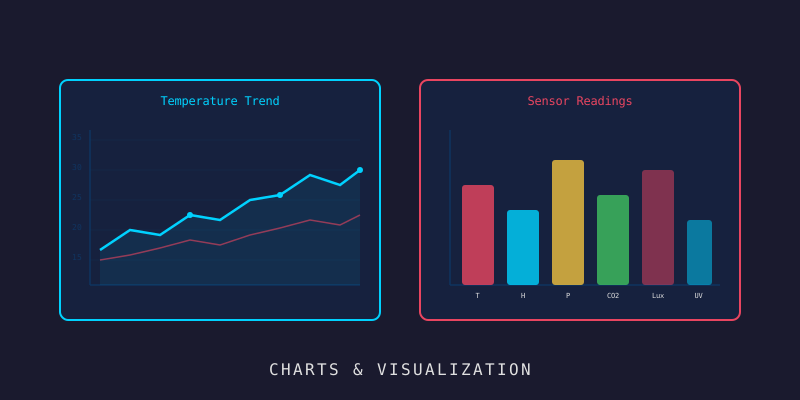
ตัวเลขดิบๆ บนการ์ดมันบอกได้แค่ “ตอนนี้เท่าไหร่” แต่บอกไม่ได้ว่า “มันกำลังจะไปทางไหน” — อุณหภูมิค่อยๆ ไต่ขึ้นทั้งวัน หรือพุ่งขึ้นพรวดเมื่อชั่วโมงที่แล้ว? คนเราอ่านกราฟเส้นได้เร็วกว่าตารางตัวเลขเยอะ วันนี้เราจะวาด line chart จากข้อมูล time-series จริงบนมือถือกัน (☞゚ヮ゚)☞
WHY ต้องสร้าง SVG เอง? Lynx ไม่มี chart library สำเร็จรูปอย่างเว็บ แต่มันมี
<svg>element ที่รับ SVG string ผ่าน propcontentได้ เราเลย เขียน SVG builder ของเราเอง ที่ interpolate เฉพาะ “ตัวเลข” ลงไป — ปลอดภัยจาก injection และเบามาก ไม่ต้องลาก dependency หนักๆ บทความนี้อ้างอิงโค้ดจริงใน branchstep-13-mobile-charts
ก่อนเริ่ม: น้องๆ จะได้อะไรจากบทนี้?
- ดึง time-series readings ผ่าน
GET /api/v1/devices/:id/readings(range/field/window/aggregate) - เข้าใจว่าทำไม backend clamp ค่า range/window/limit ให้ — client ส่งแค่ “เจตนา”
- แปลง reading row → จุดบนกราฟ (sort ตามเวลา, กรองค่าที่ใช้ไม่ได้)
- เขียน SVG line chart builder แบบ safe-by-construction
- render ด้วย
<svg content={svg} />ของ Lynx ที่ scale ตามจอ - ทำตัวเลือก metric / time range / downsample window + สรุปสถิติ (min/max/last/count)
ภาพรวม: จาก InfluxDB มาเป็นเส้นกราฟ
graph LR
    A[(InfluxDB)] -->|GET /devices/:id/readings| B[useReadings]
    B -->|toPoints: sort + filter| C[TimePoint t,v]
    C -->|buildLineChartSvg| D[SVG string]
    D -->|svg content=| E[📈 LineChart บนจอ]
Step 1: useReadings — ดึงข้อมูลแบบ Bounded
readings endpoint คืน “flat projection” ของ row จาก InfluxDB เราประกาศ type ให้ตรง (api/types.ts):
// ReadingRow คือ projection แบนๆ ที่ readings endpoint คืนมา
export interface ReadingRow {
  time: string
  field: string
  value: number | string | boolean | null
  tags?: Record<string, unknown>
}

export interface ReadingMeta {
  bucket: string
  measurement: string
  range: string
  limit: number
  count: number
  field?: string
  window?: string
  aggregate?: string
}
hook useReadings (screens/useReadings.ts) ยิง request แล้วแปลง row เป็นจุดกราฟ จุดสำคัญคือ client ส่งแค่ “เจตนา” (อยากได้ range ไหน, window เท่าไหร่) ส่วนการ clamp ขอบเขตเป็นหน้าที่ backend:
export interface TimePoint {
  t: number   // epoch ms
  v: number   // ค่า numeric
}

/** ดึงค่า numeric ออกจาก row แล้ว sort ตามเวลา (น้อย→มาก) */
function toPoints(rows: ReadingRow[]): TimePoint[] {
  const points: TimePoint[] = []
  for (const row of rows) {
    const value = typeof row.value === 'number' ? row.value : Number(row.value)
    const time = Date.parse(row.time)
    if (Number.isFinite(value) && !Number.isNaN(time)) {
      points.push({ t: time, v: value })   // ทิ้งค่าที่ parse ไม่ได้
    }
  }
  points.sort((a, b) => a.t - b.t)
  return points
}
ตัว hook ใช้ trick ดีๆ คือ serialize params เป็น key เพื่อให้ effect re-run เฉพาะตอน “ค่าจริงเปลี่ยน” ไม่ใช่ทุก render:
export function useReadings(deviceId: string, params: ReadingsParams): ReadingsState {
  const [points, setPoints] = useState<TimePoint[]>([])
  const [meta, setMeta] = useState<ReadingMeta | null>(null)
  const [loading, setLoading] = useState(true)
  const [error, setError] = useState<string | null>(null)
  const abortRef = useRef<AbortController | null>(null)

  // serialize params เพื่อให้ effect re-run เฉพาะตอนเปลี่ยนจริง
  const key = JSON.stringify({ deviceId, params })

  const load = useCallback(async () => {
    abortRef.current?.abort()
    const controller = new AbortController()
    abortRef.current = controller
    setLoading(true)
    setError(null)
    try {
      const env = await api.getReadings(deviceId, params, controller.signal)
      setPoints(toPoints(env.data))
      setMeta(env.meta)
    } catch (err) {
      if (controller.signal.aborted) return
      setError(err instanceof ApiError ? err.message : 'failed to load readings')
    } finally {
      if (!controller.signal.aborted) setLoading(false)
    }
    // eslint-disable-next-line react-hooks/exhaustive-deps
  }, [key])

  useEffect(() => {
    void load()
    return () => abortRef.current?.abort()
  }, [load])

  return { loading, error, points, meta, reload: load }
}
WHY ให้ backend clamp? เพราะถ้า client ขอ range 10 ปี window 1 วินาที มันจะลาก InfluxDB ตายและ response มหึมา backend ตั้งขอบเขตไว้ป้องกัน — client แค่ขอ “1 ชั่วโมง ละเอียดทุกนาที” ก็พอ
Step 2: SVG Builder — Safe by Construction
นี่คือหัวใจของบทนี้ครับ screens/chart.ts มีฟังก์ชัน buildLineChartSvg ที่รับจุดกราฟ + ขนาด + สี แล้วคืน SVG เป็น string
ก่อนอื่น มี guard เรื่องสี — validate ว่าค่าสีเป็น token ที่ปลอดภัยเท่านั้น (กันไม่ให้ string แปลกๆ หลุดเข้าไปใน attribute ของ SVG):
/**
 * validate CSS color token อนุญาตเฉพาะรูปแบบที่ปลอดภัย เพื่อให้ค่าสี
 * ไม่มีทาง break ออกจาก attribute ของ SVG ได้ (สีมาจาก theme ของแอปเอง
 * ไม่ใช่จาก server แต่ทำให้ builder ปลอดภัยตั้งแต่โครงสร้าง)
 */
function safeColor(color: string): string {
  return /^(#[0-9a-fA-F]{3,8}|rgba?\([\d.,\s]+\)|[a-zA-Z]+)$/.test(color)
    ? color
    : '#888888'
}
แล้ว builder ก็คำนวณ scale แล้ว interpolate เฉพาะตัวเลข ลงใน path/coordinate — ค่าจาก server (ที่เป็น number) จึง inject markup ไม่ได้เลย:
export function buildLineChartSvg(
  points: TimePoint[],
  dim: ChartDimensions,
  colors: ChartColors,
): string {
  const w = Math.max(1, Math.floor(dim.width))
  const h = Math.max(1, Math.floor(dim.height))
  const padX = 6, padY = 8
  const innerW = Math.max(1, w - padX * 2)
  const innerH = Math.max(1, h - padY * 2)

  const line = safeColor(colors.line)
  const fill = safeColor(colors.fill)
  const axis = safeColor(colors.axis)

  const baseline = `<line x1="${padX}" y1="${r(h - padY)}" x2="${r(w - padX)}" y2="${r(h - padY)}" stroke="${axis}" stroke-width="1" />`

  // จุดน้อยกว่า 2 = วาดเส้นไม่ได้ คืนแค่เส้นฐาน
  if (points.length < 2) {
    return `<svg xmlns="http://www.w3.org/2000/svg" viewBox="0 0 ${w} ${h}">${baseline}</svg>`
  }

  // หาขอบเขตเวลา/ค่า เพื่อ map ลงพื้นที่วาด
  const tMin = points[0].t
  const tMax = points[points.length - 1].t
  const tSpan = tMax - tMin || 1
  let vMin = points[0].v, vMax = points[0].v
  for (const p of points) {
    if (p.v < vMin) vMin = p.v
    if (p.v > vMax) vMax = p.v
  }
  const vSpan = vMax - vMin || 1

  const x = (t: number) => padX + ((t - tMin) / tSpan) * innerW
  const y = (v: number) => padY + (1 - (v - vMin) / vSpan) * innerH

  // สร้าง path ของเส้น
  let d = ''
  for (let i = 0; i < points.length; i++) {
    d += `${i === 0 ? 'M' : 'L'}${r(x(points[i].t))} ${r(y(points[i].v))} `
  }

  // พื้นที่ใต้เส้น (area fill) + เส้น + เส้นฐาน
  const path = `<path d="${d.trim()}" fill="none" stroke="${line}" stroke-width="2" stroke-linejoin="round" stroke-linecap="round" />`
  return `<svg xmlns="http://www.w3.org/2000/svg" viewBox="0 0 ${w} ${h}">${path}${baseline}</svg>`
}
อุปมา safe-by-construction: เหมือนครัวที่ออกแบบให้ “ทำของไหม้ยาก” ตั้งแต่แรก ไม่ใช่ติดถังดับเพลิงทีหลัง — เราอนุญาตแค่ตัวเลขเข้า template ความเสี่ยง injection เลยหายไปตั้งแต่โครงสร้าง
ยังมี seriesStats คำนวณสรุปไว้โชว์ใต้กราฟด้วย:
export function seriesStats(points: TimePoint[]): SeriesStats | null {
  if (points.length === 0) return null
  let min = points[0].v, max = points[0].v
  for (const p of points) {
    if (p.v < min) min = p.v
    if (p.v > max) max = p.v
  }
  return { min, max, last: points[points.length - 1].v, count: points.length }
}
Step 3: LineChart — render SVG ด้วย Lynx
<svg> ของ Lynx รับ SVG string ผ่าน prop content แล้ว scale ตาม container ด้วย viewBox เราเลือกสีตาม theme (light/dark) ก่อนสร้าง:
// พื้นที่วาด nominal — viewBox ทำให้ scale ตามความกว้าง container ผ่าน CSS
const VIEW_WIDTH = 320
const VIEW_HEIGHT = 160

export function LineChart(props: LineChartProps) {
  const { theme } = useTheme()
  const colors =
    theme === 'dark'
      ? { line: '#5b8dff', fill: 'rgba(91,141,255,0.18)', axis: '#2a3548' }
      : { line: '#2f6df6', fill: 'rgba(47,109,246,0.12)', axis: '#dfe3ec' }

  const svg = buildLineChartSvg(props.points, { width: VIEW_WIDTH, height: VIEW_HEIGHT }, colors)

  return <svg className='LineChart' content={svg} />
}
แค่นี้แหละครับ — กราฟที่ scale ได้ทุกความกว้างจอ โดยไม่ต้องพึ่ง library
Step 4: DeviceCharts — เลือก Metric / Range / Window
หน้านี้ผูกทุกอย่างเข้าด้วยกัน user เลือก metric กับ range ได้ แล้วแต่ละ range จะมี downsample window ที่เหมาะสมติดมาด้วย (ช่วงยาว = window กว้าง เพื่อให้เส้นไม่รก):
interface RangeOption { value: string; label: string; window: string }

const RANGES: RangeOption[] = [
  { value: '1h',   label: '1H', window: '1m'  },
  { value: '6h',   label: '6H', window: '5m'  },
  { value: '24h',  label: '24H', window: '15m' },
  { value: '168h', label: '7D', window: '1h'  },
]

// field ตั้งต้นตามชนิด device
const FALLBACK_FIELDS_BY_TYPE: Record<string, string[]> = {
  temperature_humidity: ['temperature', 'humidity'],
  motion: ['motion'],
  relay: ['state'],
  gateway: ['rssi'],
}
ประกอบ params ส่งให้ useReadings (ใช้ useMemo กัน re-create object ทุก render):
export function DeviceCharts(props: DeviceChartsProps) {
  const fieldChoices = FALLBACK_FIELDS_BY_TYPE[props.deviceType] ?? ['temperature']
  const [field, setField] = useState<string>(fieldChoices[0])
  const [rangeValue, setRangeValue] = useState<string>('6h')

  const range = RANGES.find((r) => r.value === rangeValue) ?? RANGES[1]

  const params = useMemo<ReadingsParams>(
    () => ({
      range: range.value,
      field,
      window: range.window,
      aggregate: 'mean',   // downsample ด้วยค่าเฉลี่ยต่อ window
      limit: 500,
    }),
    [range.value, range.window, field],
  )

  const { loading, error, points, meta, reload } = useReadings(props.deviceId, params)
  const stats = seriesStats(points)
  // ...
}
เมื่อมีข้อมูลแล้ว render กราฟ + แถบสถิติ + บรรทัด meta ที่บอกว่า aggregate ยังไง:
<view>
  <LineChart points={points} />
  {stats ? (
    <view className='Charts__stats'>
      <view className='Charts__stat'>
        <text className='Charts__statValue'>{formatValue(stats.last)}</text>
        <text className='Charts__statLabel'>Latest</text>
      </view>
      <view className='Charts__stat'>
        <text className='Charts__statValue'>{formatValue(stats.min)}</text>
        <text className='Charts__statLabel'>Min</text>
      </view>
      <view className='Charts__stat'>
        <text className='Charts__statValue'>{formatValue(stats.max)}</text>
        <text className='Charts__statLabel'>Max</text>
      </view>
      <view className='Charts__stat'>
        <text className='Charts__statValue'>{stats.count}</text>
        <text className='Charts__statLabel'>Points</text>
      </view>
    </view>
  ) : null}
  {meta ? (
    <text className='Charts__metaLine'>
      {humanize(field)} · {meta.range}
      {meta.window ? ` · ${meta.aggregate ?? 'mean'} per ${meta.window}` : ''}
    </text>
  ) : null}
</view>
Step 5: ต่อปุ่ม “View readings” จากหน้า Detail
สุดท้ายเราเชื่อมหน้านี้เข้ากับ DeviceDetail จากบทที่แล้ว — เพิ่มปุ่มแล้วสลับด้วย local state เหมือนเดิม:
const [showCharts, setShowCharts] = useState(false)

if (showCharts && device) {
  return (
    <DeviceCharts
      deviceId={device.device_id}
      deviceType={device.type}
      deviceName={device.name}
      onBack={() => setShowCharts(false)}
    />
  )
}

// ...ในส่วน render เพิ่มการ์ดปุ่ม...
<Card>
  <Button label='View readings' block variant='primary'
    onTap={() => setShowCharts(true)} />
</Card>
เมื่อเห็นเส้นกราฟ temperature ค่อยๆ ไต่ขึ้นทั้งวัน:
╔══════════════════════════════════╗
║ ║
║ ┌─╱╲ ╱╲___╱ ( •̀ ω •́ )✧ ║
║ ──┘ ╲__╱ ║
║ "เห็นแนวโน้มชัดกว่าตัวเลขเยอะ" ║
║ ║
╚══════════════════════════════════╝สรุป: บทนี้เราทำอะไรไปบ้าง
| ส่วนประกอบ | รายละเอียด |
|---|---|
| ดึงข้อมูล | GET /api/v1/devices/:id/readings (range/field/window/aggregate/limit) |
| Bounded | client ส่ง “เจตนา”, backend clamp ขอบเขต range/window/limit |
| แปลงข้อมูล | toPoints: parse number, sort เวลา, ทิ้งค่าที่ใช้ไม่ได้ |
| SVG builder | buildLineChartSvg safe-by-construction (interpolate เฉพาะตัวเลข + safeColor) |
| render | <svg content={svg} /> + viewBox scale ตามจอ |
| ตัวเลือก | metric / time range / downsample window + สรุป min/max/last/count |
ตอนนี้ app เราเห็นทั้งค่าปัจจุบัน (dashboard), สั่งงานได้ (control), และดูแนวโน้มย้อนหลัง (charts) แล้ว — เหลืออีกชิ้นเดียวคือ “การแจ้งเตือน”
Next Step
บทสุดท้ายของ phase mobile! เราจะทำหน้า Alerts — แสดง alert rule จาก backend, badge ตาม severity, read/unread, และ notification preferences พี่จะเล่าตรงๆ ว่าอะไรเป็น “ของจาก backend” และอะไรเป็น “affordance ฝั่ง client” เพราะ backend ไม่มี endpoint ประวัติ alert ที่ trigger แล้ว มาลุยกันต่อ! (^_^)v
Navigation:
- Prev: #15 Device Control
- Next: #17 Alerts & Notifications